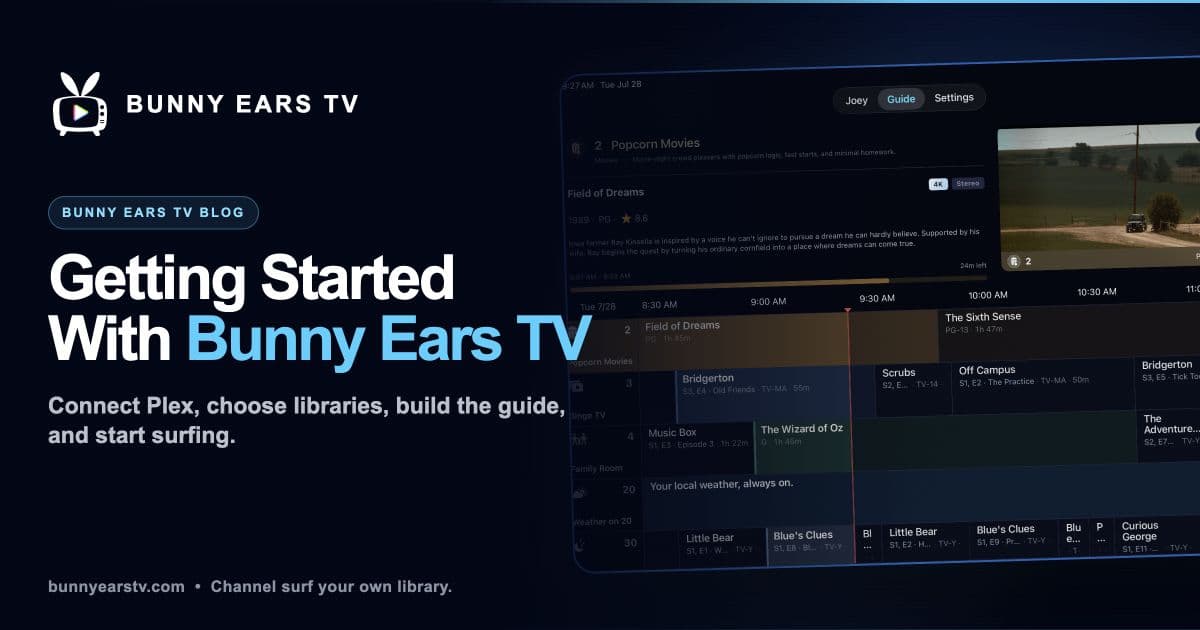
You already did the hard part. You built a Plex library worth watching. Bunny Ears TV gives that library a program guide, a channel button, and something that is already on.
This guide covers the real setup, including the choices the app asks you to make and the limits worth knowing before you pay. I built Bunny Ears TV, so you should read my recommendation with that context.
What Bunny Ears TV Does
Bunny Ears TV is a native app for Apple TV, iPhone, and iPad. It connects to the Plex Media Server you select and builds scheduled channels from selected movie, television, music, and music-video libraries.
The lineup includes more than 400 built-in channels across 17 packages. That total already includes 68 Radio stations, so it is not more than 400 plus another 68. The guide shows up to four hours of recent programming and 28 hours ahead.
Two special channels do more than sort a genre:
- Channel 19, Music Video Mixtapes, mixes selected Plex playlists, collections, and video libraries.
- Channel 20, Weather, uses Apple Weather and can add a soundtrack from a selected Plex music library.
Bunny Ears TV does not provide movies, shows, music, broadcast television, or a tuner signal. The programs come from the Plex libraries you choose.
For a closer look at the lineup, see the current channel guide. For controls such as Channel Surfer, DVR mode, profiles, and quality settings, visit Features.
What You Need
A supported Apple device
Bunny Ears TV requires one of the following:
- Apple TV 4K, first generation or newer, running tvOS 26
- A compatible iPhone running iOS 26
- A compatible iPad running iPadOS 26
Apple TV HD, Roku, Fire TV, Android TV, smart-TV platforms, and web browsers are not supported.
A Plex server and account
You need access to a running Plex Media Server with at least one supported library. The server can be on the same network or available remotely.
Local playback of personal media can work with a free Plex account. Plex now applies separate requirements to some remote video playback. Depending on the account and server owner, remote viewing may require a Remote Watch Pass or Plex Pass. Plex explains the current rules in its remote playback requirements, reviewed here on July 27, 2026.
A library with useful metadata
Channel results depend on the titles, genres, dates, ratings, collections, playlists, and other metadata available from Plex. A small or narrowly focused library can still make good broad channels, but some specialized channels may have little or no eligible programming.
Metadata is helpful, not infallible. Check Plex ratings and profile restrictions before treating a generated channel as appropriate for children.
A network that can carry your media
Playback depends on the route to your Plex server, the media format, the selected quality, and the capabilities of the device. A local wired connection can help with high-bitrate video, but Wi-Fi may be sufficient for many libraries.
What You Do Not Need
Bunny Ears TV does not require:
- A Docker container
- An M3U playlist
- XMLTV guide data
- HDHomeRun emulation
- A Bunny Ears TV server or Plex plugin
That removes a layer of server administration, but it does not mean there is no setup. You still sign in with Plex, choose a Plex Home profile when applicable, select a server and libraries, and let the first guide sync finish. Larger libraries and remote servers can take longer.
Install and Link Plex
Download Bunny Ears TV from the App Store on a supported Apple device.
The app uses Plex's linking flow. Follow the on-screen instructions to approve the device with your Plex account. If your account can access more than one server or profile, choose the one you want to use. Plex documents how player apps connect to an account in its official linking guide, reviewed here on July 27, 2026.
Next, select the libraries Bunny Ears TV should use. This is worth doing deliberately. A household may want family movies on one profile, a broader television library on another, and a music library for Radio and Weather.
Let the First Guide Build
Bunny Ears TV reads the selected library metadata and creates a schedule on the device. Progress is visible while the work runs. The time required varies with library size, server speed, network route, and whether artwork or metadata needs to be refreshed.
When the guide appears, move vertically through channels and horizontally through time. On Apple TV, the default Channel Surfer behavior lets you browse a candidate channel and confirm before replacing what is currently playing. Settings can change that behavior.
Guide previews are audible by default. If you prefer a quieter browsing experience, check the guide and playback settings.
Understand the Lineup
The 17 built-in packages include one Basic package and 16 packages available with Bunny Ears TV+.
Basic contains 26 channels and does not expire. It is the simplest way to find out whether your library has enough range for channel surfing before buying anything.
Bunny Ears TV+ includes the remaining built-in packages and premium features. The built-in lineup contains more than 400 channels in total, including the 68 Radio stations numbered 1000 through 1067.
Custom channels are also a Plus feature. You can create up to 300 channels, numbered 700 through 999, from a Plex playlist, collection, or selected video library. Custom channels can run in order or shuffle, and television-heavy sources can use episode blocks.
Know What Happens During Playback
Bunny Ears TV is not locked to a single playback path.
With video quality set to Auto, a healthy local connection can remain Direct Play when the device and media support it. Other combinations may use Direct Stream or ask Plex to transcode. Remote, cellular, constrained, and Plex Relay routes can behave differently from a local network.
If playback struggles:
- Check whether the Plex server is reachable from the same device.
- Note whether the connection is local, remote, or using Plex Relay.
- Try a bounded quality setting instead of Auto.
- Record the channel, title, device, OS version, and app build.
- Compare the same file on the same route in another Plex client, but do not assume two clients will choose the same playback path.
Radio uses its own audio quality choices. On iPhone and iPad, supported audio can continue in the background and publish Now Playing information to system controls.
Free and Paid Options
Current US App Store pricing, reviewed August 1, 2026:
- Basic: 26 channels free with no expiration
- Monthly: $4.99
- Annual: $29.99
- Lifetime: $99.99
Eligible customers can receive a 14-day introductory offer on the monthly or annual plan. The lifetime purchase does not include a trial. App Store pricing, tax, and eligibility can vary by account or region.
All paid choices include the same Bunny Ears TV+ entitlement. Family Sharing is supported for the current products where Apple's purchase-sharing rules allow it.
Privacy and Advertising
Your media remains stored on the Plex server you chose. Bunny Ears TV requests library metadata, artwork, and media streams through Plex services so it can build the guide and play your content. It is not a media hosting service.
Bunny Ears TV does not insert third-party advertising. Plus customers can optionally create Ad Bumpers from clips in their own Plex libraries. Those clips are customer-selected programming, not an ad network.
Read the Privacy Policy for the current service and diagnostic disclosures.
Common Setup Problems
The guide has few useful channels
Confirm that you selected the intended libraries and profile. Then check the relevant titles in Plex for genre, year, rating, collection, and playlist data. The app cannot place media into a channel when the required source or metadata is missing.
A server or library is missing
First verify that the signed-in Plex account can see it. Shared-server permissions and Plex Home profiles can expose different libraries. If the server is remote, confirm Remote Access and the account's remote playback eligibility.
A channel appears but will not play
Capture the connection type, quality setting, title, and error. A server restart, expired authorization, unavailable file, unsupported stream, Relay limit, or transcode failure can all look similar from the couch.
Custom content has changed
Refresh the affected source. Bunny Ears TV can refresh an individual custom channel without rebuilding unrelated channels. Removing a custom channel from Bunny Ears TV does not delete its Plex playlist, collection, or library.
If the issue persists, use the contact page and include the details above.
The Short Version
Install Bunny Ears TV, link Plex, choose a profile, server, and libraries, then let the first guide build. Try the 26 Basic channels before paying. If the habit of scrolling is the problem, the test is simple: open the guide, see what is already on, and watch for a while.