You already have plenty to watch in Plex. The annoying part is choosing one thing from a wall of posters, especially when you only wanted to sit down and see what was on.
The short answer is that you can add scheduled channels from your own library with Bunny Ears TV. Install the app on a supported Apple device, link your Plex account, choose a server and libraries, then let it build the first guide. You can start with 26 Basic channels free. Bunny Ears TV+ opens the rest of the built-in lineup and lets you create custom channels from Plex playlists, collections, and video libraries.
Before the steps, one disclosure: I built Bunny Ears TV. This is a practical guide to setting up my app, not an independent product review.
What Channels Are Available on Plex?
“Plex Channels” can describe three different things. Sorting out that language prevents a lot of frustrating setup advice.
| Type of channel | Where the programs come from | What you need |
|---|---|---|
| Plex Free Live TV | Internet streams supplied by Plex and its partners | A supported Plex player in an eligible region |
| Plex Live TV & DVR | Local over-the-air broadcasts | A compatible tuner and antenna; recording requires Plex Pass |
| Personal-library virtual channels | Movies, shows, music, playlists, and collections on your Plex server | A channel app such as Bunny Ears TV |
Plex says its own free, ad-supported service includes more than 600 live channels. The exact Plex TV channels vary by country, and they are separate from the media on your Plex server. Plex also supports over-the-air television through compatible tuner hardware. Its Live TV and DVR documentation explains the hardware and subscription requirements.
If your real goal is to channel surf the movies and shows you already collected, you are looking for Plex virtual channels. Bunny Ears TV creates that experience on Apple TV, iPhone, and iPad. It does not mix Plex's free streaming catalog or antenna feeds into your personal lineup.
What You Need Before Adding Channels
Bunny Ears TV requires:
- Apple TV 4K, first generation or newer, running tvOS 26
- Or a compatible iPhone or iPad running iOS 26 or iPadOS 26
- A Plex account with access to a running Plex Media Server
- At least one selected movie, television, or music library with eligible media
- A working local or remote network route to that server
You do not need Docker, an IPTV player, an M3U playlist, XMLTV guide data, tuner emulation, or a Bunny Ears TV server. The app connects to the Plex server you already use.
Channel results still depend on your library. A large comedy collection may fill many broad and specific stations. A small, narrowly focused library may produce a shorter lineup. Plex metadata such as genre, year, rating, studio, people, collections, and watch state helps Bunny Ears TV decide where a title fits.
How to Add Plex Channels With Bunny Ears TV
1. Install the app and link Plex
Download Bunny Ears TV from the App Store on a supported Apple TV, iPhone, or iPad. Open the app and follow the Plex linking screen. It shows a four-character code, a QR code, and the plex.tv/link address so you can approve the device from a browser.
If your Plex account belongs to a Plex Home, choose the profile that should use the guide. Profiles can see different libraries and content, so this choice affects the channels Bunny Ears TV can build.
2. Choose a server and libraries
Bunny Ears TV looks for local servers and the remote connections available to your Plex account. Select one server, then choose the movie, television, and music libraries you want included.
Be deliberate here. Selecting a kids library creates a different lineup from selecting every library on the server. Music libraries supply the built-in Radio stations and can provide the optional soundtrack for Weather on 20.
You can change the selection later in Settings > Server & Library > Manage Libraries.
3. Let the first guide build
The app reads library metadata page by page, shows progress, and builds eligible channels in batches. A modest local library can finish sooner than a very large remote one. This is setup work, not a promise that hundreds of channels appear the moment the app opens.
When Hide Empty Channels is enabled, a built-in channel appears only when your selected media gives it enough programming. That keeps the guide useful instead of filling it with empty rows.
4. Choose channel packages
The always-free Basic package contains 26 channels. It is enough to test whether a scheduled guide solves the scrolling problem with your library.
These are pre-built channel definitions, so you do not have to program hundreds of schedules one at a time. Once the initial sync finishes, the app fills the eligible stations from your library.
Bunny Ears TV+ includes 16 additional packages. Together with Basic, the app includes more than 400 built-in channel definitions across categories such as comedy, drama, action, science fiction, crime, horror, documentaries, classics, franchises, mood, discovery, utility filters, and music.
The total also includes 68 Radio stations numbered 1000 through 1067. Music Video Mixtapes lives on channel 19, while Weather on 20 uses Apple Weather and can play music from your Plex library. You can browse the current package structure in the Bunny Ears TV channel guide.
5. Open the guide and start surfing
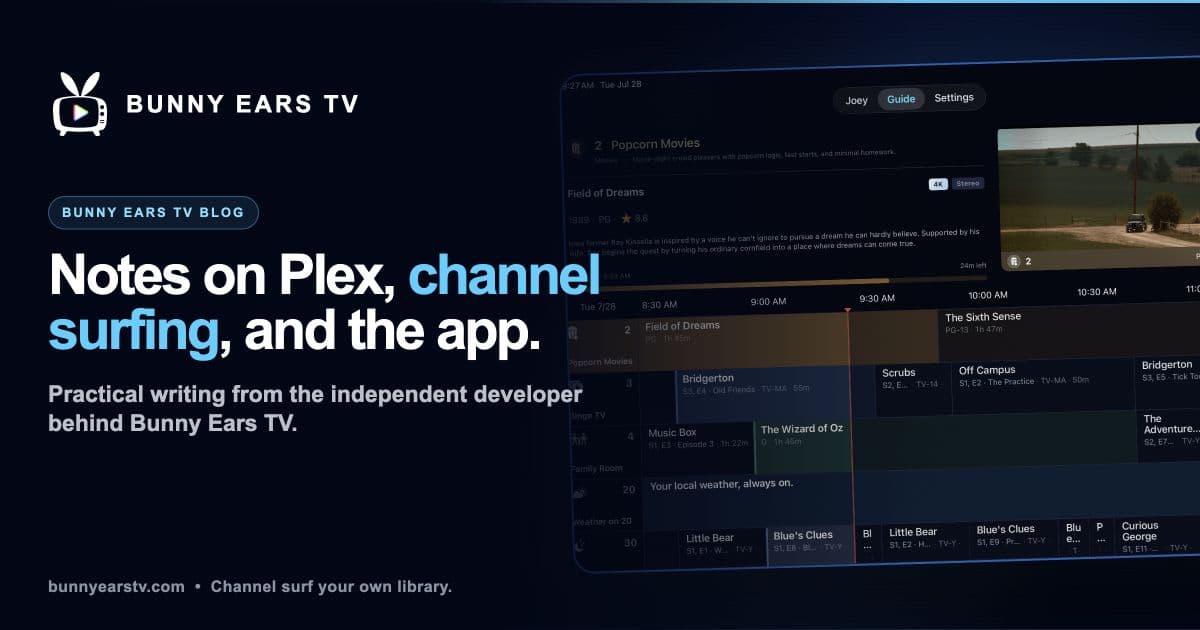
The Plex program guide in Bunny Ears TV places channels vertically and time horizontally. It shows four hours of recent programming and 28 hours ahead, with a current-time marker, program details, artwork, and a preview of the tuned channel.
Select a currently airing program to tune its channel. Open full-screen playback when you are ready to watch. The Channel Surfer puts nearby choices over the playing video. By default, browsing does not change the channel until you confirm, though Tune While Browsing is available if you prefer quicker Plex Channel Surfing.
How to Create a Custom Plex Channel
Built-in stations are the fast route. A custom channel is useful when you already have a particular shelf of media in mind, such as Saturday morning animation, late-night movies, one director's work, or a long-running group of shows.
First, decide which Plex source fits the idea:
- Use a playlist for a hand-picked source you already maintain in Plex.
- Use a collection for titles grouped around a theme, person, franchise, or any other collection you created.
- Use a video library when the whole library should become the source.
Then open Settings > Custom Channels in Bunny Ears TV:
- Choose to add a channel from a playlist, collection, or library.
- Select the Plex source.
- Give the channel a name, icon, and accent color.
- Choose ordered or shuffled programming.
- For television-heavy sources, choose how episode blocks should rotate between shows.
- Save the channel and let its content import.
Custom channels require Bunny Ears TV+. They use channel numbers 700 through 999, with support for up to 300 channels. Large sources can appear as placeholders while their content imports in the background, so you can leave the settings screen instead of watching a spinner.
You can reorder custom channels, refresh one source, or edit one station without rebuilding unrelated schedules. Deleting a custom channel removes it from Bunny Ears TV only. It does not delete the playlist, collection, library, or media from Plex. The Custom Channels feature page covers the scheduling choices in more detail.
What the Program Guide Does With Your Media
A playlist gives you a queue. A virtual-channel guide adds a shared clock.
When you tune to a Bunny Ears TV channel, the program can already be in progress because its position follows the current schedule. The next program is already waiting in the guide. That is what makes the result feel different from pressing Shuffle and starting at the beginning of a queue.
The schedule is built from Plex metadata and the sources you selected. Bunny Ears TV does not modify the files or metadata on your server. The guide can sync compatible programming and settings through iCloud across supported devices, while network, display, active profile, and other device-specific choices remain local.
Limits Worth Knowing Before You Start
Bunny Ears TV is designed around personal Plex libraries on supported Apple devices. It is not a source of cable networks, local broadcasts, live sports, or Plex's free streaming channels.
The built-in lineup contains more than 400 definitions, but the useful number for you depends on the media and metadata in your selected libraries. Custom channels require Bunny Ears TV+, while the 26-channel Basic package remains free.
Playback can use Direct Play, Direct Stream, or a Plex-provided transcode depending on the media, device, server, route, and quality settings. Remote playback may also be subject to Plex account requirements.
Your media stays on the selected Plex server. Bunny Ears TV communicates with Plex for sign-in, server discovery, metadata, artwork, and playback. Its classifier matches built-in video channels locally rather than uploading your media catalog for classification, and the app does not insert third-party advertising. See the Privacy Policy for the current disclosures.
Common Questions About Adding Plex Channels
Can I add Plex channels without maintaining another server?
Yes. Bunny Ears TV runs on Apple TV, iPhone, and iPad and does not require a separate channel server, Docker container, IPTV configuration, Plex plugin, M3U file, or XMLTV feed. You still need a Plex Media Server that holds the media.
Are Bunny Ears TV channels the same as Plex Free Live TV?
No. Plex Free Live TV is an ad-supported streaming service supplied by Plex and its partners. Bunny Ears TV schedules media from the Plex server you select.
Can a Plex playlist become a channel?
Yes. With Bunny Ears TV+, a supported Plex playlist, collection, or selected video library can become a custom channel with its own name, icon, color, and schedule behavior.
What is the best first custom channel?
Start broad enough to create variety. A collection with a few dozen related movies or several television series will teach you more than a source with three items. Let it run for an evening before fine-tuning the order. The point is to stop programming for a while and see what is already on.