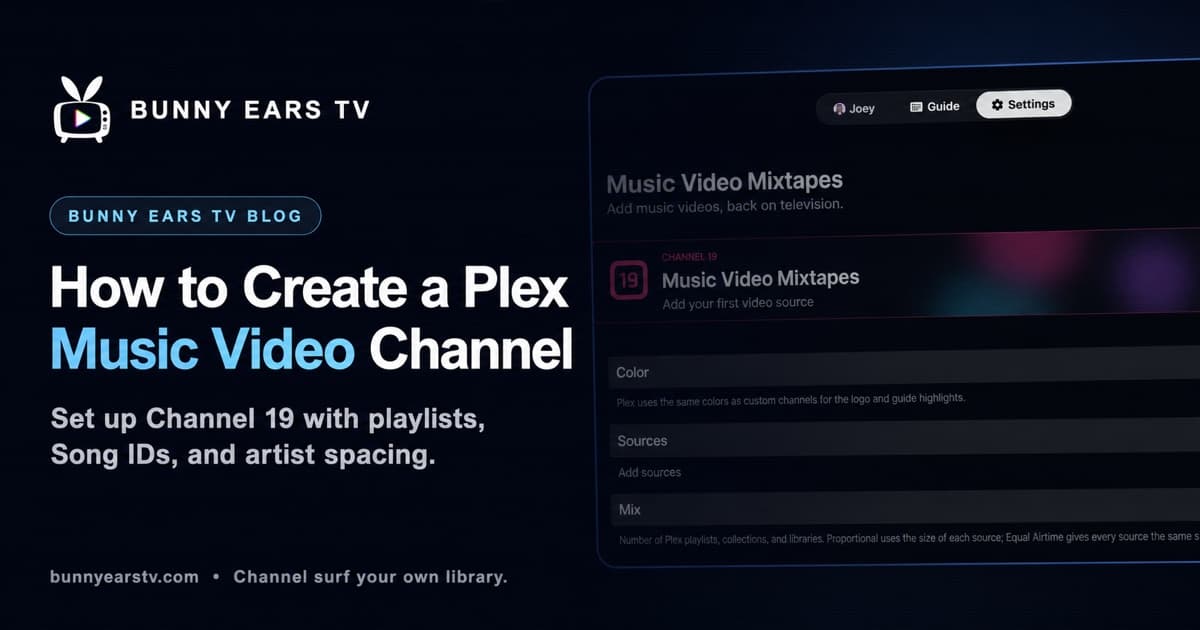
A folder full of music videos is not quite a television station. Shuffle can play the files, but it does not stop one artist from returning too soon, identify the song on screen, or give new additions a regular place in the rotation.
The short answer is to use Music Video Mixtapes on channel 19 in Bunny Ears TV. Choose one or more Plex playlists, collections, or video libraries, then let Music Director build the running order. The result is a personal Plex music video channel that sits in the guide with the rest of your lineup.
I built Bunny Ears TV, including Channel 19, so this is a firsthand setup guide for my app rather than an independent review. Bunny Ears TV does not provide an MTV or VH1 feed, and it does not supply or download music videos. Those names describe the familiar music-television format, not an affiliation. The videos come from the Plex server you select, and you should use media you are entitled to use.
What You Need Before You Start
You need Bunny Ears TV on Apple TV, iPhone, or iPad, plus access to a running Plex Media Server. Channel 19 is part of the always-free 26-channel Basic package. Its optional Ad Bumper group requires Bunny Ears TV+.
Most important, the music videos must already be visible through Plex. Bunny Ears TV reads the sources and information that Plex exposes. It does not scan folders behind Plex or repair a missing match.
Plex supports local artist and music videos stored beside music files or in a global music-video folder. Its local music video naming guide explains those layouts. A dedicated Plex video library can also be practical for a large collection because each clip is easy to inspect, add to a playlist, and group into a collection.
Before building the station, open a few videos in Plex and check the title, artist, runtime, and playback. Channel 19 can work around a sparse catalog. It cannot turn incorrect metadata into a useful Song ID.
How to Create a Plex Music Video Channel in Bunny Ears TV
1. Open Music Video Mixtapes
Open Settings > Music Video Mixtapes. Make sure Enabled is on. You can also choose the accent color used by the channel logo and guide highlights.
Channel 19 is called Music Video Mixtapes, with the call sign MIX19. Once it has a usable source, it appears in the guide as a continuous video channel rather than one of the audio-only Radio stations in the 1000 range.
2. Add one or more Plex video sources
Select Video Sources, then choose Browse Playlists, Browse Collections, or Browse Libraries. Pick the source you want to add. You can return and add more sources of any type.
Each source has a different job:
- A playlist works well for a hand-edited rotation, new releases, or current favorites.
- A collection is useful for a durable theme such as a decade, genre, scene, or late-night block.
- A video library can supply the broad catalog without maintaining one enormous playlist.
For a first station, one broad source is enough. If you already know the identity you want, combine a catalog library with a narrower collection and a small fresh-release playlist. That creates variety without asking you to program every hour by hand.
Bunny Ears TV imports each source in the background and shows its progress separately. A small playlist may be ready quickly. A very large remote library will take longer, and you can leave the screen or add another source while it works. Removing a source later only removes it from Channel 19. It does not change the playlist, collection, library, or media on Plex.
3. Choose how the sources share airtime
Return to the main Music Video Mixtapes screen and open Source Mix.
Proportional lets larger sources contribute more videos. Choose it when the source sizes already represent the balance you want. A library with 800 videos will naturally appear more often than a playlist with 40.
Equal Airtime gives each source a similar share regardless of size. It is useful when a small new-release playlist or themed collection should remain noticeable beside a large archive.
There is no universal best setting. Let the channel run for an hour and notice whether one source disappears or takes over. That is easier to judge from the couch than from a source count.
4. Set artist spacing
Open Artist Spacing under Music Director. This setting tells Channel 19 how many other videos should play before the same artist returns. Start with five videos apart for a varied collection, then adjust after watching a real block.
Artist spacing is a best effort. If the sources contain only a few performers, the station eventually has to repeat one. Consistent artist naming in Plex also matters. “The Example Band” and “Example Band” may look like different artists to a scheduler even when you know they are the same.
5. Configure Song IDs
Song IDs put the artist and title over the playing video, like the lower-third cards used by music television. You can show them at the opening, closing, both, or turn them off. Styles include Classic Cable, Minimal, and Neon Mix, with several display durations.
Turn on Show When Tuning In if you want an ID when you arrive halfway through a video. Channel 19 derives the label from the Plex title or an Artist - Title filename when available. Short videos receive adjusted timing so the card does not cover an unreasonable amount of the picture.
6. Decide whether new videos and mini-sets get special treatment
Fresh Drop gives recently added videos extra spins. You can define “fresh” as 7, 14, or 30 days and feature one every 5, 10, 15, or 20 videos. It is a good fit for a growing collection, but it can feel repetitive if the fresh pool contains only two clips.
Artist Spotlight occasionally schedules a short run by one performer. Choose a set of two to five videos and how often a spotlight begins. This is an intentional exception to artist spacing, similar to a short artist block inside an otherwise mixed station.
Use either feature because it matches the station you want, not because every switch needs to be on. A broad all-day channel may benefit from Fresh Drop. A deep single-genre collection may get more character from the occasional spotlight.
7. Add optional channel breaks
If you use Bunny Ears TV+, create an Ad Bumper group from clips already on your Plex server. Then return to Music Video Mixtapes > Channel Breaks, choose that group, and set a break every 3, 5, 8, or 10 music videos.
This is useful for short homemade station IDs, era cards, or transitions between blocks. Bunny Ears TV does not insert outside advertising. The group remains specific to Channel 19, and its own clips-per-break setting still applies. Keep the clips brief enough that they give the station a voice without becoming the part everyone skips.
A Sensible First Custom Plex Music Video Station
If you are unsure where to begin, keep the first version simple:
- Add one broad video library or collection.
- Use Proportional mixing until you add a second source.
- Set artist spacing to five videos.
- Show a three-second Song ID at the opening.
- Leave Fresh Drop, Artist Spotlight, and breaks off for the first hour.
Then write down only what interrupts the station: an artist returning too soon, a weak title card, a source that never appears, or a video that fails to play. Fix those specific problems. A useful station usually comes from a few observed adjustments, not a giant ruleset designed before the first song plays.
Channel 19 Versus a Regular Custom Channel
In Bunny Ears TV, “custom channel” also names a separate Bunny Ears TV+ feature. Regular Custom Channels occupy numbers 700 through 999 and use general scheduling controls for Plex playlists, collections, or video libraries.
Channel 19 is the better starting point for a custom Plex music video station because it is already in Basic and has music-video-specific tools: source balancing, artist spacing, Fresh Drop, Artist Spotlight, Song IDs, and a dedicated break policy. Use a regular Custom Channel when you need another station number or a general video schedule without those Channel 19 behaviors.
You can see the current controls and device screenshots on the Music Video Mixtapes feature page.
Limits Worth Knowing
Channel 19 schedules personal media from the selected Plex server. It does not search YouTube, include a licensed music-video catalog, or recreate a cable network feed. If a video is unavailable to the active Plex profile, it cannot join that profile's station.
Playback may use Direct Play, Direct Stream, or a Plex-provided transcode depending on the file, device, server, quality setting, and network route. Older encodes can ask more of the server than modern compatible files. Test a few representative videos in Plex before importing a large source.
Music Video Mixtapes is designed for rotation and discovery, not exact clock scheduling. If you need one specific clip to begin at 8:03 p.m. every Tuesday, a granular server-side scheduler is a better fit.
What Channel 19 does bring back is the smaller decision music television used to offer: keep watching, or see what is on next.
Common Questions About Plex Music Video Channels
Can a Plex music video playlist become a channel?
Yes. Add the playlist under Settings > Music Video Mixtapes > Video Sources. You can use it alone or mix it with other Plex playlists, collections, and video libraries.
Do I need Docker, IPTV, M3U, or XMLTV setup?
No. Bunny Ears TV is a native app for supported Apple TV, iPhone, and iPad devices. It connects to your existing Plex server and builds Channel 19 inside the app.
Is this an Apple TV Plex music video channel only?
No. Channel 19 is available on Apple TV, iPhone, and iPad. Apple TV is the living-room experience, while the same station can be configured and watched on the supported mobile devices.
Can I make an MTV-style Plex channel from my own videos?
Yes. Song IDs, artist spacing, Fresh Drop, Artist Spotlight, and short user-supplied breaks can recreate that programmed format. Bunny Ears TV does not include a cable feed or licensed music-video catalog, and it is not affiliated with MTV or VH1.