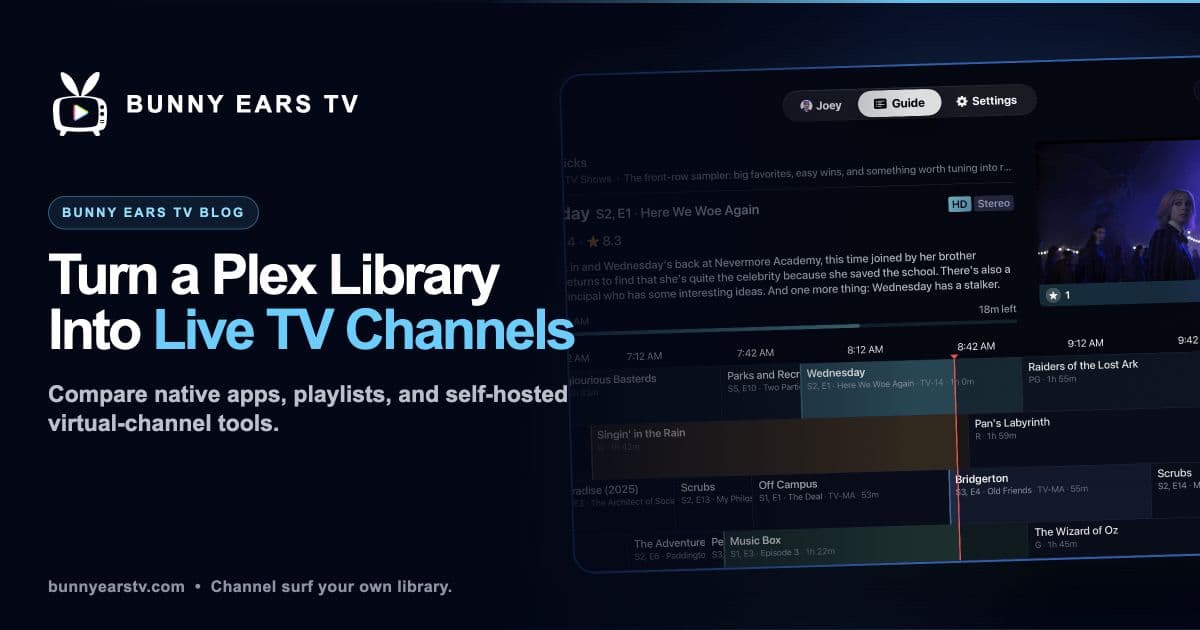
You have a Plex library full of good movies and shows, then lose the evening to a wall of posters.
Virtual channels change the question. Instead of “What should I choose?” you ask “What is on?”
A virtual channel schedules media from your personal library and presents it as a continuous stream or client-side timeline. It can have a number, theme, and program guide. It is not a source of live broadcast television, sports, news, or licensed programming.
There are four practical ways to create the experience. I built Bunny Ears TV, one of the options below, so I will be specific about its strengths and limits.
Option 1: Make a Plex Playlist
A shuffled Plex playlist is the smallest possible channel.
Create a playlist from the movies or episodes that fit a theme, start playback, and let the queue continue. You do not get a television guide or several continuously scheduled stations, but it tests whether hands-off viewing solves the problem.
Collections and playlists are also useful building blocks for more complete channel tools. Give them recognizable names and keep the rules broad enough that they do not become empty after one metadata change.
Option 2: Run a Self-Hosted Channel Tool
ErsatzTV, DizqueTV, and Tunarr run as services and create channel output for compatible IPTV clients.
This model gives you direct control over schedules, filler, playback order, streaming profiles, and the client delivery path. It is the right starting point when you want to program a channel in detail.
The install choices are broader than “Docker or nothing”:
- ErsatzTV's official installation guide lists Docker and native packages. Its established all-in-one project is now called ErsatzTV Legacy.
- Tunarr's official installation guide lists Docker and standalone binaries.
- DizqueTV's official repository remains the best place to verify current releases and setup information before following an older tutorial.
I reviewed those primary sources July 27, 2026.
A self-hosted tool adds a service you configure and update. It may also need FFmpeg settings, storage for configuration, and an IPTV-compatible client. In exchange, it can schedule with more precision than a native guide that builds channels automatically.
Option 3: Use Channels DVR
Channels DVR combines a dedicated server with client apps, live television sources, recording, guide data, and personal-media features.
It is a broader system than a Plex channel generator. That makes sense when you also want an antenna or another supported live source in the same television interface.
Channels lists its subscription at $8 monthly or $80 yearly, with a first month free, on its official subscription page, reviewed July 27, 2026.
If live sources are not part of your plan, decide whether another server and subscription solve enough additional problems to justify them.
Option 4: Use a Native Apple App
Bunny Ears TV takes a client-side approach. It runs natively on Apple TV, iPhone, and iPad, links to Plex, and builds a guide from the server and libraries you select.
It does not require a separate Bunny Ears TV server, Docker container, M3U playlist, XMLTV guide, tuner emulation, or Plex plugin. It still requires setup: link Plex, choose a Plex Home profile when applicable, select a server and libraries, and wait for the initial guide sync.
The built-in lineup contains more than 400 channels across 17 packages. That number includes 68 Radio stations.
Basic contains 26 channels and does not expire. Bunny Ears TV+ includes the remaining built-in packages and supports up to 300 custom channels from a Plex playlist, collection, or selected video library.
Custom channels can use ordered or shuffled playback, an icon, color, and television episode blocks. They do not offer the same granular time-of-day scheduling as ErsatzTV. That is the clearest tradeoff.
Other channel sources include:
- Channel 19, Music Video Mixtapes, with multiple Plex sources, artist spacing, fresh-content controls, and optional Song IDs
- Channel 20, Weather, with Apple Weather and an optional Plex music soundtrack
- Radio channels 1000 through 1067, built from selected Plex music libraries
The guide shows up to four hours of recent programming and 28 hours ahead. Channel Surfer browses before replacing the current program by default.
See the Bunny Ears TV channel guide or full feature list for details.
How Bunny Ears TV Talks to Plex
Bunny Ears TV does not modify Plex Media Server or install a server plug-in. It uses Plex account and server services to discover the server, read selected library metadata and artwork, and request media for playback.
That is different from saying the server does not know the app exists. Plex authorization, API requests, and playback requests are part of the connection.
Your media remains stored on the Plex server. Bunny Ears TV is not a cloud media host. The app still exchanges the information needed for authentication, discovery, metadata, artwork, diagnostics where enabled, and playback. Read the Privacy Policy for current disclosures.
Playback Is a Route Decision
Do not choose a virtual-channel tool based on an absolute “never transcodes” promise.
Bunny Ears TV can use Direct Play when a healthy route, device, and media combination supports it. Other combinations can use Direct Stream or ask Plex to transcode. Video and audio have separate quality choices, and remote, cellular, constrained, and Plex Relay routes can require different policies.
Plex also applies account requirements to some remote video playback. Depending on the server owner and viewer, remote access may require Plex Pass or a Remote Watch Pass. Check Plex's official remote playback requirements, last modified April 10, 2026.
Compare the Approaches
| If you care most about | Start with |
|---|---|
| One broad queue with no new software | A Plex playlist |
| Detailed schedules and IPTV output | ErsatzTV Legacy or Tunarr |
| An existing DizqueTV workflow | Current DizqueTV project documentation |
| Live sources plus whole-home recording | Channels DVR |
| A built-in lineup on supported Apple devices | Bunny Ears TV |
For a closer product-by-product review, read ErsatzTV vs. DizqueTV vs. Tunarr vs. Bunny Ears TV.
If you have already chosen the native Apple route, follow How to Add Plex Channels for the setup and custom-channel steps.
Bunny Ears TV Requirements and Price
Bunny Ears TV requires:
- Apple TV 4K, first generation or newer, with tvOS 26
- Or a compatible iPhone or iPad with iOS 26 or iPadOS 26
- A Plex account and access to a Plex Media Server
- At least one selected library with eligible media
- A network route capable of the chosen stream quality
Current US pricing, reviewed July 27, 2026:
- 26 Basic channels free
- $4.99 monthly
- $29.99 annually
- $99.99 for lifetime access
Eligible customers can receive a 14-day introductory offer on monthly or annual plans. Pricing, tax, and eligibility can vary by App Store account and region.
Make the First Channel Broad
Whichever route you choose, start with a channel that has enough material to surprise you. Comedy, movies from one decade, a long-running sitcom collection, or a broad music-video source usually teaches you more than a narrowly filtered experiment.
Then stop editing it for one evening. Turn on the guide and watch what is already there. That is the part a folder full of media cannot reproduce by itself.