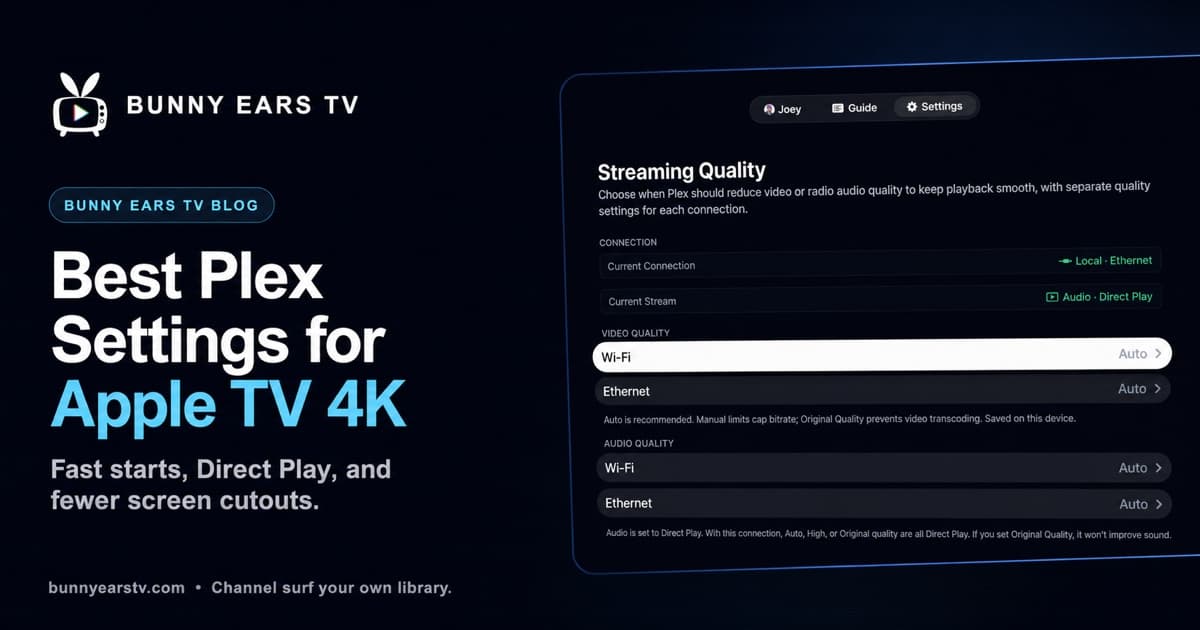
The best Plex settings for Apple TV 4K depend on what you mean by “best.” A movie setup usually favors exact frame rate and dynamic range. A channel-surfing setup favors fast starts and a picture that does not disappear while the television changes formats.
If speed is the priority, start here in Bunny Ears TV:
| Setting | Fast local playback preset |
|---|---|
| Video Quality for the active connection | Auto on a healthy local network |
| Playback Reliability | Fast Start |
| High Dynamic Range | On for a compatible HDR television, or Off for an SDR display |
| Refresh Rate | 59.94 Hz (Default) for a typical North American mixed library |
| Network | Ethernet when available, otherwise strong Wi-Fi |
This preset keeps the output format stable between programs. That matters when you are changing channels or running a continuous Plex music video playlist on Apple TV. A brief HDMI resync that is easy to tolerate before a movie becomes irritating when it happens after every three-minute video.
The playback and streaming feature page shows the relevant Apple TV quality controls and explains the possible Plex delivery paths.
There are tradeoffs. Locking HDR and refresh rate can make channel changes feel quicker, but Match Content is more faithful to each source. Choosing Original Quality prevents Bunny Ears TV from requesting a video transcode, but it cannot make an incompatible file playable. I will explain both choices so you can tune for the room you actually have.
I built Bunny Ears TV, including its playback and display controls. This is a firsthand setup guide for my app, plus the corresponding settings in the official Plex app and Apple TV itself.
The Fastest Useful Preset for Bunny Ears TV
Open Bunny Ears TV on Apple TV, then make two short visits to Settings.
1. Set video quality for the connection you use
Go to Settings > Streaming Quality > Video Quality. Apple TV keeps separate choices for Wi-Fi and Ethernet, so change the row that matches the current connection.
Choose Auto first. On a verified healthy local connection, Bunny Ears TV preserves Direct Play for compatible video. If the route is remote, relayed, constrained, or measurably slow, Auto can ask Plex for a more suitable stream instead of applying the living-room assumption everywhere.
Choose Original Quality only when your priority is to prevent video transcoding and you know the network can carry the source bitrate. In Bunny Ears TV, Original Quality prevents a video transcode request. Plex may still Direct Stream compatible audio and video into a different container, which uses little server processing and does not re-encode the picture.
Avoid a fixed bitrate such as 8 Mbps or 20 Mbps when the goal is Plex Direct Play on Apple TV. A manual cap tells Plex to fit the video under that limit, which can trigger transcoding when the source is larger.
2. Choose Fast Start
On the same Streaming Quality screen, open Playback Reliability and select Fast Start.
Fast Start uses a smaller starting buffer and shorter startup patience. It is meant for a reliable local network where the Apple TV can begin reading the file immediately. If the stream starts quickly but later pauses, move back to Auto or Balanced. A setting that wins the first two seconds and loses the next ten minutes is not faster in practice.
3. Lock HDR when channel-change speed matters
Go to Settings > Playback > Video & Display > High Dynamic Range.
- On locks a capable Apple TV and television to the active HDR or Dolby Vision output. This reduces repeated display changes while channel surfing.
- Match Content follows each video's dynamic range. It is the source-accurate choice, but the television may briefly blank while switching between SDR, HDR, and Dolby Vision.
- Off forces SDR. Use it for an SDR display or when a stable SDR output matters more than showing HDR sources in HDR.
Calling this an “HDR lock” is convenient, but the control is named High Dynamic Range in Bunny Ears TV. Use On only when the complete HDMI path supports the active format, including the television, receiver or soundbar, HDMI input, and cable.
4. Lock the refresh rate
In Settings > Playback > Video & Display > Refresh Rate, choose the fixed rate that best matches most of the library:
- 59.94 Hz (Default) for a mixed North American television or music-video library
- 50 Hz (PAL) for a collection dominated by 25 or 50 fps sources
- 23.976 Hz (Film) for a film-heavy library
- 24 Hz or 60 Hz when those are the actual dominant rates
- Match Content when accurate cadence matters more than uninterrupted switching
A fixed refresh rate reduces repeated HDMI renegotiation. It does not change the media file or guarantee perfect motion for every odd source. If pans look uneven, try the rate that matches that content or return to Match Content.
Best Settings in the Official Plex App on Apple TV
The official Plex app uses different labels. Open your avatar from the navigation sidebar, choose Settings, and check these options.
Video Quality
- Set Home Streaming to Maximum for local playback on a fast home network.
- Turn Auto Adjust Quality off when your priority is original-quality local playback rather than automatic bitrate changes.
- Turn on Play Smaller Videos at Original Quality so a file below the selected ceiling is not converted unnecessarily.
Plex says a high local quality setting makes Direct Play or Direct Stream more likely. Maximum is not a speed boost by itself. It removes a quality ceiling that could force Plex to convert an otherwise compatible file.
For remote playback, do not copy the local Maximum setting blindly. Internet Streaming must fit both the server's upload and the Apple TV location's download. Auto Adjust Quality can be useful on a changing remote connection precisely because transcoding may be safer than asking that connection to carry the original.
Advanced
Keep Allow Direct Play on. Plex documents that turning it off forces compatible media away from Direct Play and toward Direct Stream or transcoding.
Direct Play is the simplest path: Plex sends a compatible file without changing it. Direct Stream is also a good result when Plex only needs to repackage compatible streams. A full transcode converts video, audio, or both and asks much more of the server.
There is no honest “force Direct Play for everything” switch. The container, video codec, audio codec, bitrate, resolution, subtitle choice, device, display capabilities, and route all participate in the decision.
Apple TV Match Content and the Brief Black Screen
Apple documents Match Dynamic Range and Match Frame Rate under Apple TV Settings > Video and Audio > Match Content. When either is enabled, Apple TV can switch its output to follow the program. Apple also warns that the television may show a blank screen or flicker while changing formats.
That blank screen is often a format switch, not Plex buffering. The distinction matters:
- A format-switch cutout usually happens at the start or end of playback and returns on its own.
- Buffering usually leaves the player waiting for media data and may happen after playback has already started.
- A failed HDMI connection may produce repeated flicker, no picture, or audio problems across apps.
For the most accurate movie presentation, a common approach is a 4K SDR system format with Match Dynamic Range and Match Frame Rate enabled. SDR menus remain SDR, while HDR and film-rate content can switch when playback begins. The expected cost is the brief screen cutout.
For the fewest format switches across Apple TV apps, choose one stable format and turn both Match Content options off. That keeps the HDMI signal consistent, but Apple TV must convert content that does not match the locked output. This is a speed-first choice, not a universal picture-quality recommendation.
Bunny Ears TV also provides its own High Dynamic Range and Refresh Rate controls because a television channel changes programs far more often than a movie app does. Start with the in-app controls for Bunny Ears playback. Change the Apple TV system settings when you want the same fixed-output behavior in other apps too.
Apple's Match Content guide explains the expected blank screen, while its Apple TV 4K HDR guide covers compatible inputs, formats, and the built-in HDMI connection check.
How to Stop Plex Transcoding on Apple TV 4K
If the Plex server is converting a file, changing one switch may not be enough. Work through the cause in this order.
Remove an accidental quality limit
A quality setting below the source bitrate can force a transcode. Use Maximum in the official Plex app for a fast local network. In Bunny Ears TV, use Auto for the recommended route-aware policy or Original Quality when you explicitly do not want video transcoding.
Confirm the Apple TV is reaching the server locally
A television and server can be in the same house while Plex still uses a remote or Relay path. Check the current connection shown in Bunny Ears TV under Settings > Streaming Quality. A local Ethernet or Wi-Fi route is the right starting point for high-bitrate Plex 4K Direct Play.
Ethernet is useful when the Apple TV model includes it and the cable route is practical. Strong Wi-Fi can also work. Neither one repairs an unsupported file, an overloaded server, or a remote connection with limited upload.
Check the selected subtitles
Subtitles are a common reason Plex transcodes video. Plex notes that an incompatible subtitle track may need to be burned into the picture, which requires a full video transcode. Text subtitles such as SRT are usually the safer compatibility choice. Image-based formats such as PGS and VOBSUB commonly require burning on Plex clients.
Turn subtitles off for one test. If the same file changes from Transcode to Direct Play or Direct Stream, the subtitle path is the cause. Plex's Direct Play and Direct Stream guide explains this behavior.
Test audio separately from video
An incompatible audio track can be converted while the original video remains untouched. That is not the same load as a full 4K video transcode. If a file offers more than one audio track, test a compatible alternate track before re-encoding the video.
Inspect one representative file
Do not redesign an entire library because one unusual title transcodes. Test a normal episode, a high-bitrate 4K movie, an HDR title, a subtitled title, and a few music videos from different eras. Watch the Plex server's playback activity to see whether each session reports Direct Play, Direct Stream, or Transcode.
Plex's Apple TV settings reference and streaming quality guide are useful checks when the labels change in a future app update.
Best Plex Music Video Settings for Apple TV
Music videos make weak playback settings obvious. A mixed collection may jump from an older 4:3 SDR clip to a 4K HDR release, then to a 25 fps concert recording. With Match Content enabled, every change can ask the television and receiver to negotiate a new signal.
For a continuous Plex music video channel on a reliable local network, I would start with:
- Video Quality: Auto for the active Wi-Fi or Ethernet profile
- Playback Reliability: Fast Start
- High Dynamic Range: On if the display path handles the locked HDR output correctly, otherwise Off for stable SDR
- Refresh Rate: 59.94 Hz (Default) for a broad North American mix, or 50 Hz for a PAL-heavy collection
- Text subtitles off unless a video actually needs them
Then watch ten transitions, not one favorite clip. That small test reveals whether the problem is startup buffering, a screen cutout, one incompatible encode, or a rate that does not suit most of the collection.
Channel 19 in Bunny Ears TV turns Plex playlists, collections, and video libraries into Music Video Mixtapes. It can space artists apart, give recent additions more airtime, build short artist sets, and show Song IDs. The detailed Plex music video channel setup guide covers the programming side. The settings in this article handle the playback side.
That combination is useful if you want to make an MTV-style Plex channel from your own media without maintaining a separate channel server. Bunny Ears TV does not supply or download the videos. The station uses media already available from the Plex server you choose.
Troubleshooting Fast Plex Playback
| What you see | Most likely place to look first |
|---|---|
| Brief blank screen at every program change | HDR and refresh-rate matching |
| Long spinner before playback | Route, server reachability, bitrate, or starting buffer |
| Server reports video transcoding | Quality cap, video compatibility, or burned subtitles |
| Server reports audio transcoding only | Selected audio format or surround output |
| Fast start followed by pauses | Move Playback Reliability from Fast Start to Auto or Balanced |
| One title fails while others work | Inspect that file's video, audio, subtitles, and bitrate |
| Every high-bitrate title struggles | Test Ethernet or stronger Wi-Fi, then confirm the route is local |
Change one setting at a time and replay the same transition. If HDR, refresh rate, quality, subtitles, and networking all change together, a good result will not tell you what fixed it.
Common Questions
Should Plex on Apple TV use Direct Play or Direct Stream?
Direct Play is ideal when the whole file is compatible. Direct Stream is also efficient because Plex repackages compatible streams without re-encoding the video. The result to avoid on a capable local setup is an unnecessary full video transcode.
Is Original Quality always the best Plex setting for Apple TV 4K?
No. Original Quality is useful when the local network is fast and you want to prevent Bunny Ears TV from requesting a video transcode. Auto is the better default when the same Apple TV may reach a remote server or when the route needs help. An original 4K file can still buffer if the connection cannot carry it.
Why does Apple TV go black when a Plex video starts?
If the picture returns after a moment, Apple TV may be matching the video's dynamic range or frame rate. Apple says a blank screen or flicker can occur while the television switches formats. Locking HDR and refresh rate reduces those switches, with a tradeoff in source-accurate output.
What refresh rate is best for a Plex music video channel?
Use the rate that matches most of the collection. Start at 59.94 Hz for a broad North American mix, 50 Hz for mostly PAL material, or 23.976 Hz for film-rate content. Match Content is the accuracy-first option but may add a brief cutout between videos.
Can I prevent every Plex transcode on Apple TV?
You can remove avoidable causes, but no setting makes every source compatible. Keep Direct Play allowed, avoid unnecessary bitrate limits, test without image-based subtitles, use a healthy local route, and choose media formats the client can play. In Bunny Ears TV, Original Quality prevents a requested video transcode, so an incompatible item may fail instead of being converted.
The best final setting is the one that survives a real hour of viewing. For movies, that may be Match Content. For Plex channel surfing and back-to-back music videos, a fixed HDR mode, fixed refresh rate, and Fast Start can make the television feel like it stays tuned.