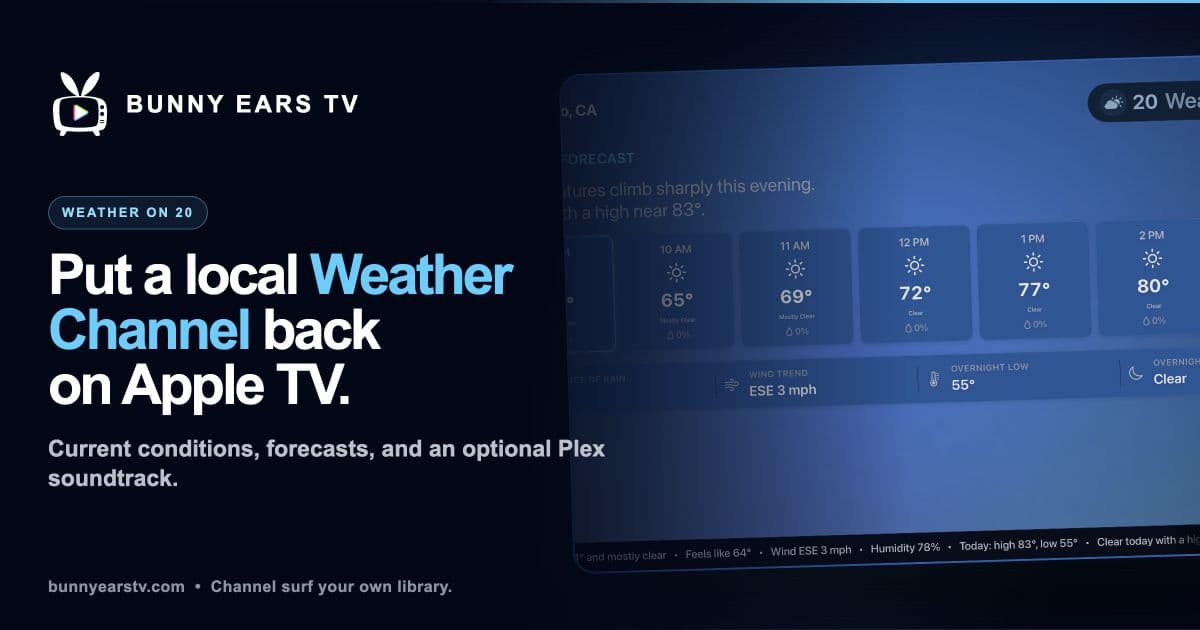
Can you install Plex on Apple TV? Yes. On a supported Apple TV 4K, open the App Store, search for Bunny Ears TV, and select Get. Bunny Ears TV is a native Plex app for Apple TV that turns the movies, shows, music, playlists, and collections on your Plex server into channels with a program guide.
One of those stations is Weather on 20. Apple Weather supplies the local forecast, while your Plex music library can supply the soundtrack. Tune to channel 20 and the forecast is already running beside the rest of your personal lineup. There is no city to search for every time you want to check the weather.
The Plex Media Server still runs on your computer, NAS, or other server device. Bunny Ears TV is the Apple TV app that connects to it. You do not need Docker, an IPTV service, an M3U playlist, XMLTV data, or a separate Bunny Ears TV server.
I built Bunny Ears TV, so this is a firsthand guide to installing and configuring my app rather than an independent review. I built channel 20 for the quick living-room check: what it feels like now, whether rain is coming, what tonight looks like, and how the week is shaping up.
How to Install a Plex App on Apple TV
Bunny Ears TV requires an Apple TV 4K, first generation or newer, running tvOS 26. You also need a Plex account with access to a running Plex Media Server and at least one supported library.
Setup follows the same basic pattern as other Apple TV apps. Apple says you can install an app from the Apple TV App Store by opening its listing and selecting Get or Buy.
- Open the App Store on Apple TV.
- Search for Bunny Ears TV and select Get.
- Open Bunny Ears TV and choose Link Plex Account.
- Scan the QR code or enter the four-character code at
plex.tv/linkon another device. - Choose the Plex Home profile, server, and movie, television, or music libraries you want Bunny Ears TV to use.
- Let the first library sync and guide build finish.
The Plex account link helps the app discover the local and remote server connections available to you. Plex also notes that Apple TV clients use a linked Plex account to find and connect to a Plex Media Server.
Choose your libraries deliberately. A music library makes the Weather on 20 soundtrack and eligible Radio stations possible. A video library, playlist, or collection can supply Channel 19 Music Video Mixtapes and custom video channels. You can change the selection later under Settings > Server & Library > Manage Libraries.
The always-free Basic package contains 26 channels, including Music Video Mixtapes on 19 and Weather on 20. Bunny Ears TV+ opens the remaining built-in packages and regular Custom Channels. The full lineup includes more than 400 built-in channel definitions and 68 Radio stations, but the useful lineup on your Apple TV depends on the media in the libraries you selected.
What Weather on 20 Is
Bunny Ears TV turns selected Plex libraries into a scheduled television guide. Most stations fill their schedules with your movies, episodes, music videos, or songs. Weather on 20 is different. It uses your device's location and Apple Weather data to create a continuous local forecast presentation.
The channel rotates through four main views:
- Current Conditions
- Hourly Forecast
- Extended Forecast
- Almanac
A ticker keeps useful details moving along the bottom, while the scene changes with the local conditions and time of day. Optional background music comes from a selected Plex music library. Weather still works if you leave the music off or if Bunny Ears TV cannot find a suitable track.
Channel 20 is enabled by default. It belongs to the 26-channel Basic package, so an expired trial or a decision not to buy Bunny Ears TV+ will not remove it.
How to Configure the Plex Weather Channel With Your Music
The phrase "custom music" needs one clarification. Weather on 20 uses songs from your selected Plex music libraries. It does not currently have a separate playlist picker where you assign one exact playlist only to the weather channel.
That keeps setup short, but it also means the quality of the soundtrack depends on the music and genre metadata already on your server.
1. Include a Plex music library
If Bunny Ears TV is already using one of your music libraries, move to the next step. Otherwise:
- Open Settings in Bunny Ears TV.
- Select Server & Library.
- Open Manage Libraries.
- Select at least one Plex music library.
- Save the selection and let the library refresh finish.
Manage Libraries controls which Plex libraries are available to the whole Bunny Ears TV lineup. Adding a music library can also fill eligible Radio stations, not just the channel 20 soundtrack.
2. Give the device a local forecast
Open Settings > Weather, then select Update Location. Allow location access when the system asks.
The saved location is device-specific. An Apple TV at home and an iPhone on a trip can use different locations. Bunny Ears TV does not sync or share the location through iCloud.
If location access was previously denied on Apple TV, open the Apple TV Settings app and go to Privacy > Location Services > Bunny Ears TV. Return to Bunny Ears TV and update the location again.
3. Choose the units
In Settings > Weather, open Units and choose:
- System, which follows the device's regional setting
- Fahrenheit
- Celsius
The choice affects temperature as well as related weather measurements such as wind, visibility, and pressure.
4. Turn on Weather Music
On the same Weather settings page, turn on Weather Music. The setting is on by default, so you may only need to confirm it.
Bunny Ears TV first looks for smooth, forecast-friendly genres such as jazz, smooth jazz, easy listening, lounge, bossa nova, new age, and instrumental music. If that group is too small, it can fall back to other appropriate tracks in the selected music library. Spoken-word, comedy, children's, and holiday categories are kept out of the weather mix.
One playable song is enough. If that is all the selected library offers, the soundtrack can repeat it rather than deciding that channel 20 has no music.
5. Tune to channel 20
Return to the guide and select 20 Weather on 20. The forecast presentation begins in the guide preview and continues in full screen when you open the channel.
If a track is unavailable, the forecast does not stop. Channel 20 can continue quietly.
What Information Does This Apple TV Weather Channel App Show?
Weather on 20 is designed to be readable across a room. It gives each part of the forecast its own page instead of shrinking everything into one dashboard.
Current Conditions
The first page answers the immediate questions:
- Current temperature and condition
- Feels-like temperature
- Today's high and low
- A short plain-language weather summary
- Wind speed and direction
- Humidity
- UV index and category
- Visibility
- Pressure
- Dew point
A Tonight card adds the expected low, a short outlook, sunrise and sunset times, and the moon phase. That is more detail than a single temperature card, but the large type keeps the most important numbers visible from the sofa.
Hourly Forecast
The hourly page shows the coming hours with time, temperature, condition, and precipitation chance. A summary band calls out changes such as wind trends and the overnight low.
This is the page I use before walking out the door. It answers a more useful question than "Is it raining now?" You can see whether the temperature is climbing and when the chance of rain becomes worth planning around.
Extended Forecast
The extended view lists the days ahead with conditions, high and low temperatures, and precipitation chances.
The layout works well as a passive television page. It is less suited to someone who wants to pan around an interactive radar map. Weather on 20 is a glanceable local forecast, not a replacement for professional severe-weather coverage.
Almanac
The Almanac page collects the details that do not belong in a basic forecast strip:
- Sunrise and sunset
- Amount of daylight
- Moon phase and illumination
- Wind, humidity, and visibility
- Tonight's outlook
It feels like the part of an older local weather broadcast that stayed on long enough for you to notice something beyond the current temperature.
Ticker and changing scene
The bottom ticker carries current conditions and forecast details across every page. The background presentation also responds to the selected location, weather, and time of day.
If a fresh Apple Weather request fails but Bunny Ears TV still has recent conditions, the channel identifies the delay, keeps showing the latest information, and retries. Location permission, a network connection, and Apple Weather availability still matter.
What the Weather Soundtrack Can and Cannot Do
The soundtrack has a narrow job: make the forecast pleasant to leave on. You can choose which Plex music libraries Bunny Ears TV includes, enable or disable Weather Music, and improve the selection by keeping genre metadata accurate in Plex. You cannot currently assign a weather-only playlist, set an exact song order, or use music videos instead of audio tracks.
If your ideal weather channel must play one carefully maintained playlist in order, Weather on 20 does not offer that control today. If you want a smooth background mix from your own server, that is what it does.
Weather on 20 also does not use DVR seeking, program restart, or Ad Bumpers. Those controls make sense for scheduled movies and episodes, but not for a live forecast that changes underneath them.
Three Ways to Use Plex Music on Apple TV
Music can appear in three different parts of Bunny Ears TV. The right one depends on whether you want a quiet soundtrack, music videos on the television, or an audio station that can stay on for hours.
| What you want | Bunny Ears TV channel | Plex source |
|---|---|---|
| Music behind a local weather forecast | Weather on 20 | Selected Plex music libraries |
| A continuous Apple TV music video channel | Music Video Mixtapes on channel 19 | Plex video playlists, collections, and libraries |
| Audio organized by genre, era, mood, or style | Radio on channels 1000 through 1067 | Selected Plex music libraries |
This distinction matters when you want to play Plex music on Apple TV. Weather Music uses audio tracks but keeps the forecast on screen. Music Video Mixtapes plays the video files themselves. Radio gives the music library its own set of audio stations with track information and album art.
Want a Plex Music Video Channel on Apple TV?
If your collection is made of music videos rather than audio tracks, use channel 19. Music Video Mixtapes can turn a Plex music video playlist on Apple TV into a continuous station, or mix that playlist with collections and video libraries from the same server.
Channel 19 can leave space between videos by the same artist, favor recent additions with Fresh Drop, build short Artist Spotlight sets, and display optional Song IDs. Plex's guide to adding local artist and music videos covers the supported server-side folder layouts and naming.
The result is a custom Plex music video station built from videos you already maintain. Bunny Ears TV does not supply or download a music-video catalog. The Plex music video channel setup guide walks through source mixing, artist spacing, Song IDs, and optional channel breaks.
Weather and music videos give the guide two useful pauses from the usual run of movies and episodes. Channel 20 gives you five minutes to check the day. Channel 19 gives a music-video folder somewhere to be on.
Is Bunny Ears TV the Best Plex App for Apple TV?
The best Plex app for Apple TV depends on the job you want it to do. Bunny Ears TV fits people who already maintain a Plex library and want to channel surf it, leave a program guide on the television, or put music and a local weather channel in the same lineup. The app installs directly on Apple TV, and it does not ask you to maintain a second channel server.
It is less suitable if you need an interactive weather radar, cable network streams, or a catalog of movies and music videos supplied by the app. Bunny Ears TV schedules and plays eligible media from the Plex server you select. Apple Weather supplies channel 20's forecast.
Common Questions About Apple TV, Plex, and Weather
Can you install Plex on Apple TV?
Yes. Install Bunny Ears TV from the App Store on a supported Apple TV 4K, link your Plex account, and choose the server and libraries you want to use. Bunny Ears TV then builds a program guide from your Plex media and adds Weather on 20 to the free Basic lineup.
Does the Plex Media Server install on Apple TV too?
No. The Apple TV runs the Bunny Ears TV client. Plex Media Server continues to run on a compatible computer, NAS, or other server device that stores and organizes your media.
Is Weather on 20 free?
Yes. Channel 20 is included in the 26-channel Basic package, which does not expire.
Does the forecast come from my Plex server?
No. Apple Weather supplies the conditions and forecast. Plex supplies only the optional music soundtrack.
Can I choose an exact Plex playlist for Weather Music?
Not currently. You choose the Plex music libraries available to Bunny Ears TV, and channel 20 builds a suitable soundtrack from their tracks.
Will Weather on 20 work without music?
Yes. Turn Weather Music off, leave music libraries unselected, or let the channel continue silently when no playable track fits. The forecast remains the main program.
Can I make a Plex music video channel after installing the app?
Yes. Channel 19 Music Video Mixtapes is included in Basic. Add Plex video playlists, collections, or libraries under Settings > Music Video Mixtapes > Video Sources, then choose how the sources share airtime.
Where can I see every Bunny Ears TV channel?
The channel guide directory lists the free Basic lineup, paid channel packages, custom-channel range, and Radio stations. For a closer look at channel 20 itself, see the Weather Channel feature page.