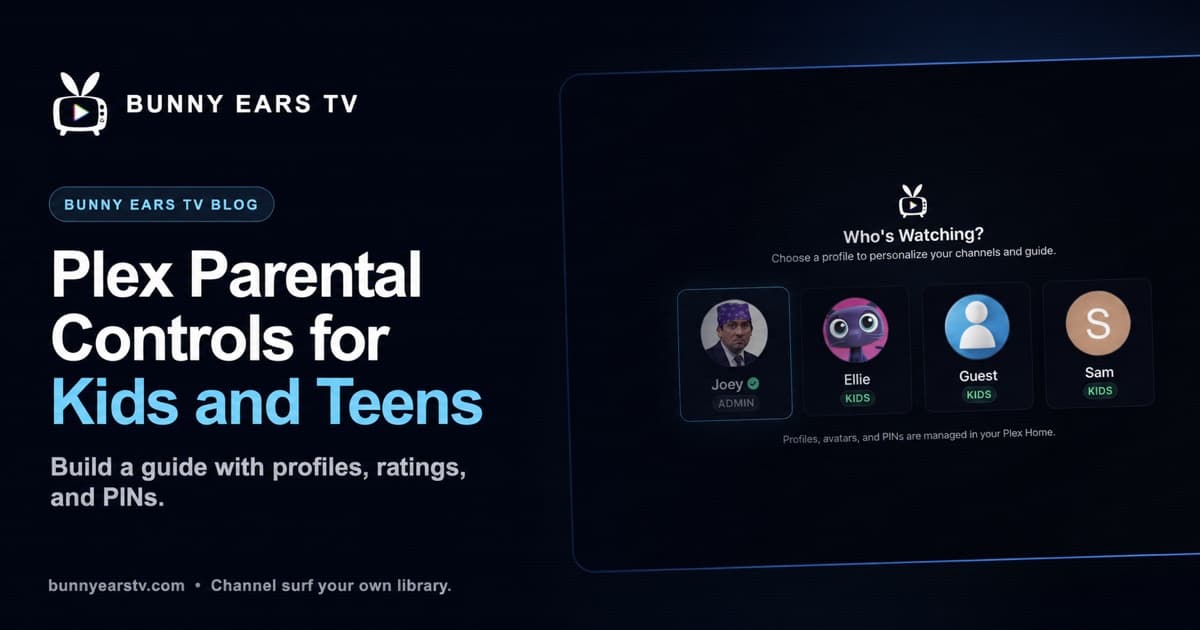
The awkward part of sharing a Plex library with kids is not finding something they can watch. It is making sure the adult movie shelf, unrated home videos, and late-night music-video rotation do not wander into the same guide.
The strict setup uses two layers. Plex decides which server libraries a child or teen can access. Bunny Ears TV then turns the permitted media into a personal channel guide with its own rating level, unrated-content policy, music-channel switch, and protected household settings.
That gives a child something simple to use: turn on the Apple TV, choose a profile, and see what is on. The rules stay with the adult.
I built Bunny Ears TV, including its profile controls. This guide is a firsthand explanation of my app, not an independent review. It is also important to be honest about the boundary: every rating-based system depends on the metadata in your Plex library. A mislabeled or unrated file still needs an adult to make the right call.
The Short Setup
If you want to set up Plex parental controls for kids without building a complicated rule system, start here:
- Create a separate Managed Account for the child in Plex Home.
- Share only the Plex libraries that person should be able to open.
- Apply the appropriate Plex restriction profile or rating rules.
- Put a four-digit Plex Home PIN on every adult profile.
- In Bunny Ears TV > Settings > Profiles, choose Little Kids, Older Kids, or Teens for that profile.
- Turn off Allow Unrated Content and decide whether Show Music Channels should be on.
- Switch into the profile and inspect the finished guide from the child's side of the remote.
The first four choices protect access at the Plex account level. The next three decide what Bunny Ears TV can place in that person's lineup.
What Plex Controls and What Bunny Ears TV Controls
Plex parental controls and Bunny Ears TV parental policies solve different parts of the same problem.
| Control | Where to configure it | What it does |
|---|---|---|
| Library access | Plex Home | Limits which movie, TV, and video libraries the profile can use |
| Plex restriction profile | Plex Home | Applies Plex's Younger Kid, Older Kid, or Teen rating preset |
| Custom ratings and labels | Plex library access settings | Allows or excludes selected ratings and labeled titles |
| Adult profile PIN | Plex Home | Asks for a four-digit code before switching into a protected profile |
| Bunny Ears restriction level | Bunny Ears TV Profiles | Filters the channel guide at Little Kids, Older Kids, or Teens level |
| Unrated-content policy | Bunny Ears TV Profiles | Shows or hides video items whose rating cannot be recognized |
| Music-channel policy | Bunny Ears TV Profiles | Shows or hides Radio and Music Video Mixtapes as a group |
| Household settings lock | Bunny Ears TV managed profile | Keeps server, library, package, custom-channel, bumper, purchase, and sign-out controls with an adult |
This layered approach is useful because Bunny Ears TV does not add a cloud catalog of movies or shows. It schedules media available through the Plex server you select. If a library is not shared with the active Plex profile, its media is not a source for that person's channels.
Create a Plex Kids Profile Before Building the Guide
A Plex Managed Account is the usual starting point for a younger child on a shared television. It belongs to the household's Plex Home, does not have its own email address, and cannot sign in to an app by itself. An administrator or another full Plex Home member signs in first, then switches to the managed user.
Plex's current Plex Home documentation explains that Managed Accounts are intended for people in the same home. For a teenager with a personal device or someone outside the household, a regular Plex account with carefully selected library access may fit better.
Create the profile in Plex Web App, then choose its libraries before fine-tuning individual ratings. A separate Family Movies or Kids TV library is easy to audit. Sharing every library and trying to exclude dozens of exceptions is harder to trust when new media arrives.
Plex offers preset restriction profiles for managed users. Its parental-controls guide currently lists Younger Kid, Older Kid, and Teen presets for movie and television ratings. If you need custom rating or label rules, check the current library access restrictions. Plex says those finer controls require an active Plex Pass for the server administrator.
Labels can handle exceptions, but read Plex's rule carefully. A title matching an allowed label may be shared in addition to the ratings you selected. A friendly label name is not proof that the combined rule behaves the way you expect. Test the managed user after changing it.
PIN-Protect Every Adult Plex Profile
A restricted Plex kids profile is only useful if a child cannot jump into the administrator account. Put a PIN on the Home admin and every adult profile available on the shared device.
In Bunny Ears TV, switching to a protected Plex Home profile opens four-digit PIN entry. The profile name and avatar still appear in the picker, but the adult guide stays behind the code.
Plex calls this a convenience control for fast user switching, not full account security. Do not share the Plex account password, and protect the Apple device itself. On Apple TV, system restrictions can add another layer around purchases and age-rated content. Apple's Apple TV parental-controls guide covers those device-wide choices.
Set a Strict Bunny Ears TV Policy
Once the Plex Home profiles appear in Bunny Ears TV, open Settings > Profiles from an adult profile. Select the child or teen, then open Content Restrictions.
| Bunny Ears TV level | Highest common US ratings allowed |
|---|---|
| Little Kids | G, TV-Y7, and TV-G |
| Older Kids | PG and TV-PG |
| Teens | PG-13 and TV-14 |
| Off | No Bunny Ears TV rating limit |
International ratings are mapped to the closest supported level. The result still depends on the rating Plex supplies for each item.
For a strict profile, leave Allow Unrated Content off. An unknown rating could mean a harmless home movie, an obscure concert clip, a bad metadata match, or something that was never classified. Hiding it is the safer default until you review it.
Then decide whether to turn on Show Music Channels. Music tracks do not carry the same standard content ratings as movies and television, so Bunny Ears TV lets an adult show or hide music channels for each profile as a group. That switch covers the Radio lineup and Music Video Mixtapes on channel 19.
Profile changes do not rewrite the household's shared guide. Bunny Ears TV derives a permitted view for the active profile, shows an Updating Channels message while needed, and blocks restricted playback while that view is being prepared. A mixed channel can remain when it still has enough permitted programs. A channel with too little allowed material disappears from that profile's lineup.
The profiles and parental controls feature page shows the profile picker, restriction screen, and PIN entry on Apple TV and iPhone.
How Parental Controls Apply to a Plex Music Video Channel
Music videos deserve a separate decision. A movie usually arrives with a familiar rating. A three-minute video may have no rating at all, even when its lyrics or images are not a fit for a younger viewer.
The most conservative policy is to turn off Show Music Channels for that profile. Bunny Ears TV then removes both audio-only Radio stations and channel 19 from the visible lineup and blocks a direct tune to them.
If a teen is allowed to watch music videos, curate the source before enabling the channel. Build a dedicated Plex music video playlist, collection, or video library containing only the clips you have approved. Use that source for Music Video Mixtapes instead of pointing the station at the full household archive.
This creates a kid-safe or teen-appropriate Plex music video channel from your own media without pretending that an absent rating is a parental review. Channel 19 can mix the selected source, space artists apart, and show Song IDs, but those programming tools do not judge lyrics or imagery.
The detailed Plex music video channel setup guide explains how to use playlists, collections, libraries, source mixing, and artist spacing. For a family policy, the important order is different: approve the clips first, build the custom Plex music video station second, then watch several transitions from the restricted profile.
Bunny Ears TV does not supply MTV, VH1, YouTube, or another licensed music-video feed. The videos remain on the Plex server you chose. Channel 19 is part of the always-free Basic lineup, while optional user-supplied station breaks require Bunny Ears TV+.
A Practical Policy for Different Ages
Age labels are a starting point, not a verdict about a particular child. These examples show how the controls can fit together.
For a younger viewer, share only clearly reviewed family libraries, use Little Kids, hide unrated content, hide music channels, and ask who is watching when the app opens.
For an older child, use Older Kids and keep unrated content off. Music channels can stay hidden until you have a small approved source that is easy to inspect.
For a teen, use Teens, choose the appropriate TV and movie libraries in Plex, and decide whether a curated music video playlist belongs in channel 19. Keep the adult profiles PIN-protected even when the teen's guide is broader.
These are intentionally plain policies. A short list of rules you actually recheck is safer than a complicated label system everyone assumes is working.
Test the Guide as the Child or Teen
Do not finish on the adult settings screen. Switch to the exact profile and use the guide for a few minutes.
Check the built-in channels, program details, custom channels, and the full-screen Channel Surfer. Try the last channel that an adult watched before switching profiles. If music is allowed, tune to Radio and channel 19. If it is not allowed, confirm that those channels are absent.
Look for these common trouble spots:
- Unrated movies, specials, and home videos
- Incorrect matches carrying the wrong rating
- Custom channels built from a broad playlist or library
- Music videos that were added after the approved source was reviewed
- An adult profile left without a PIN
- A device that opens directly into the last adult profile instead of asking who is watching
Repeat this check after adding a library, changing a Plex metadata agent, importing a large batch, or relaxing a restriction level. The guide can only respond to the source information it has now.
What These Controls Do Not Do
Bunny Ears TV does not inspect the meaning of every video, analyze song lyrics, edit Plex metadata, or decide whether one PG-13 title is right for a particular teenager. It also does not set bedtime schedules or daily screen-time limits.
Plex Home PINs do not replace the Plex password or Apple device passcode. Rating filters do not repair a wrong match. Hiding unrated content does not review it. A curated Plex music video playlist needs another look when new clips are added.
The useful promise is narrower and more concrete. The person watching gets a guide built from the Plex access and rating policy you chose. Managed profiles cannot open the household configuration screens that could undo the setup. Your media stays on your Plex server.
Common Questions About Plex Parental Controls
Does Plex have parental controls for kids?
Yes. Plex Home supports Managed Accounts, preset rating profiles, selected library access, and PIN-protected profile switching. Custom rating and label restrictions may require Plex Pass. Bunny Ears TV adds a separate rating-aware channel guide and managed-profile protections for its own settings.
How do I set up a Plex kids profile on Apple TV?
Create the Managed Account and its library restrictions in Plex Web App first. Sign in on the Apple TV with the Plex Home administrator, then choose the child's profile. In Bunny Ears TV, open Profiles from an adult account, set the restriction level, turn off unrated content if you want a strict policy, and enable Ask Who's Watching at Launch.
Can a teen have different Plex restrictions from a younger child?
Yes. Give each person a separate Plex Home profile. Bunny Ears TV stores a restriction level, unrated-content choice, and music-channel choice for each profile, so a teen can have a broader guide without changing the younger child's lineup.
Can I hide all music videos from a Plex kids profile?
Yes in Bunny Ears TV. Turn off Show Music Channels for that profile. This removes Radio and Music Video Mixtapes from the lineup and blocks tuning to them. If you leave music channels on, use a reviewed Plex source for channel 19 rather than assuming movie and TV ratings cover music videos.
Can kids change the parental-control settings?
Managed profiles cannot change the Bunny Ears TV server, libraries, channel packages, custom channels, Ad Bumpers, purchases, or account sign-out. Return to an adult profile to manage those household-wide choices.
Do Plex parental controls replace Apple Screen Time or Apple TV restrictions?
No. Plex and Bunny Ears TV control media access and the in-app guide. Use Apple's device controls for purchase restrictions, app access, and time limits.
The best final test is not whether the settings page looks strict. It is whether the child's profile shows a small, sensible guide and stays inside it when the remote starts moving.