You already did the fussy part. You found the albums, fixed the track names, chose the artwork, and built a Plex music library worth keeping. You should not have to browse artists, albums, and playlists every time you want to hear it.
If you are searching for how to add a radio station to Plex, here is the useful answer: Bunny Ears TV turns the music already on your selected Plex server into 68 radio-style channels. They appear as channels 1000 through 1067 on Apple TV, iPhone, and iPad.
Turn on the Apple TV and choose 90s Alternative Rock. Start All Music on your iPhone, lock the screen, and put the phone in your pocket. Connect to the car and let the same station continue through the active audio route.
Channel surf your own library.
I built Bunny Ears TV because I also got tired of scrolling through Plex. This is a firsthand guide to my app, not an independent review. Bunny Ears TV does not supply the songs. Every track comes from a Plex music library you can already access.
Can You Add an Internet Radio Station to Plex This Way?
No, not if you mean pasting an outside radio-stream URL into Plex.
Bunny Ears TV does not import internet radio feeds, M3U playlists, IPTV channels, or live commercial stations. It also does not write new stations into Plex Media Server. It reads the music libraries you select and builds the Radio experience inside Bunny Ears TV.
That distinction separates several similar searches:
| What you want | Feature to use | Where the media comes from |
|---|---|---|
| Named audio stations based on genre, era, mood, or listening intent | Bunny Ears TV Radio, channels 1000 through 1067 | Selected Plex music libraries |
| Plex's own Library Radio, Artist Radio, and related discovery tools | Plex or Plexamp radio | Your Plex music library and its metadata |
| A personal music video station on Apple TV | Bunny Ears TV Music Video Mixtapes, channel 19 | Plex playlists, collections, or video libraries |
| An external internet-radio stream | Not supported by Bunny Ears TV | An outside broadcast or stream provider |
Plex and Plexamp have their own radio features. Plex explains that music matching, popularity information, genres, styles, and moods help power features such as Library Radio and Artist Radio in its music metadata documentation.
Bunny Ears TV takes a different approach. Its stations live in a television-style program guide alongside movie, television, music-video, and utility channels. The point is not to replace Plexamp. It is to make your Plex library feel like something that is already on.
What the 68 Plex Music Stations Actually Play
Bunny Ears TV uses Plex music metadata such as genre, style, mood, artist, era, rating, and library state. The current Radio lineup includes broad stations, narrow genre channels, and stations built for a particular moment.
A few examples:
- All Music, Fresh Tracks, Top Rated Tracks, and Unplayed
- 50s & 60s Oldies, 80s Music, 90s Alternative Rock, and 2000s Hip-Hop
- Alternative & Indie Rock, Smooth Jazz, Soundtracks & Scores, and Ambient & New Age
- Party Mix, Workout & High Energy, Sleep & Relaxation, and Easy Listening
The station definitions are built in, but the programming comes from your collection. A country-heavy library may fill several Country stations. A library with three jazz albums may not have enough material for Smooth Jazz or 50s, 60s & 70s Jazz.
A regular Radio station currently needs at least 10 matching playable tracks totaling 30 minutes. Stations without enough matching music can stay out of the guide when empty channels are hidden.
You cannot currently create a custom audio Radio station from one exact Plex playlist. The 68 audio stations use Bunny Ears TV's built-in rules. For a source-controlled video mix, channel 19 is the better fit.
How to Add Plex Radio Stations with Bunny Ears TV
You need a Plex account, access to Plex Media Server, a supported Music library, and a device that can reach that server. Normal Bunny Ears TV playback does not require Plex Pass, although Plex-owned features such as certain remote-access or transcoding capabilities can have separate requirements.
1. Make sure Plex recognizes the music
Put the tracks in a Plex library whose type is Music. Plex recommends organizing music by artist and album, with individual tracks inside the album folder. Its music folder and naming guide shows the expected structure.
Before opening Bunny Ears TV, play a few representative tracks in Plex. Check the artist, album, genre, artwork, duration, and playback.
Clean metadata matters. If an album you consider jazz is tagged only as Vocal, it may not reach a Jazz station. If a compilation has the wrong album artist, that mistake follows it into the guide.
2. Select the music library in Bunny Ears TV
During initial setup, link your Plex account, choose one available server, and select the Music libraries you want Bunny Ears TV to use.
If the app is already configured, open Settings > Server & Library > Manage Libraries. Select the Music library, save the change, and let the refresh finish.
This does not copy the music into a Bunny Ears TV cloud service or reorganize Plex. Removing a library from Bunny Ears TV later does not delete its tracks from the server.
3. Enable the Music package
Open Settings > Channel Packages and enable Music.
The Music package contains all 68 Radio stations and is included with Bunny Ears TV+. The visible lineup still depends on the tracks and metadata in the selected libraries, so enabling the package does not guarantee that every narrow station will be populated.
4. Start with channel 1000
Return to the guide and tune to 1000 All Music. It is the best first test because it uses the broadest pool.
Once All Music is playing correctly, try a decade, genre, or mood station. That makes troubleshooting easier. If All Music works but Smooth Jazz does not appear, the connection is probably fine and the narrower station likely needs more matching metadata or tracks.
Full-screen Radio shows the album artwork, track title, artist, album, and playback progress. The station advances through its schedule and can skip a failed track when another playable item is available.
Plex Radio Stations on Apple TV
Apple TV is where the station idea becomes visible.
The 1000-series Radio channels sit in the same program guide as the rest of the Bunny Ears TV lineup. Instead of opening a music library, choosing an artist, opening an album, and selecting a song, you can move from All Music to Smooth Jazz or Soundtracks & Scores as if you were changing channels.
That is useful in ordinary rooms and ordinary moments. Put on Easy Listening while making breakfast. Switch to Party Mix when people arrive. Leave Soundtracks & Scores playing while reading. The guide gives the collection a starting point without pretending the music came from somewhere else.
Apple TV playback stops when Bunny Ears TV leaves the foreground. Background audio is an iPhone and iPad feature.
Keep Plex Radio Playing on iPhone, iPad, and in the Car
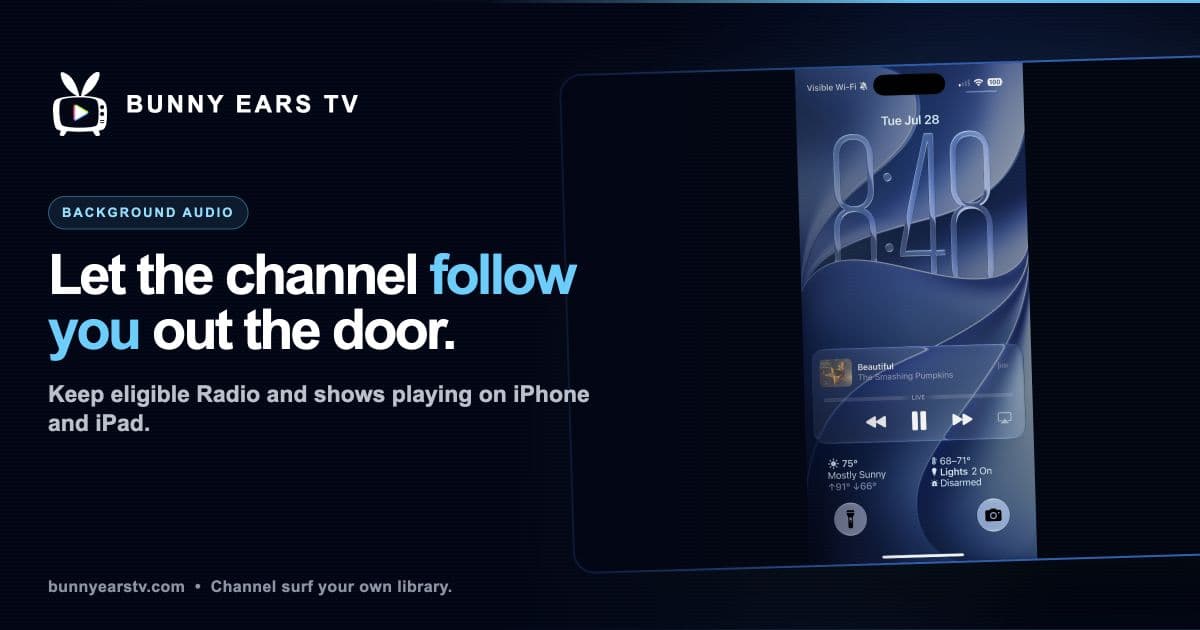
Start a Radio station on iPhone or iPad, then lock the screen or open another app. Radio's Background Audio policy defaults to Always.
You can change it under Settings > Playback > Background Audio > Radio Stations:
- Always permits an eligible Radio session to continue in the background.
- Full Screen Only requires the session to have started in full-screen playback.
- Off stops Radio when Bunny Ears TV leaves the foreground.
While background playback is active, Bunny Ears TV can publish album artwork, track information, elapsed time, and playback state to the Lock Screen, Control Center, AirPlay controls, and compatible hardware media buttons.
When an iPhone connects to CarPlay or another supported car-audio route, the station can continue through that active route. Bunny Ears TV is not a standalone CarPlay app and does not add a separate station browser to the CarPlay Home screen. Start or change the station in Bunny Ears TV while parked, then use the available Now Playing and media controls in the car.
Remote listening still depends on the iPhone or iPad having a working route to the selected Plex server. Bunny Ears TV cannot create Plex Remote Access when the server or account does not provide it. See Plex Background Audio on iPhone and iPad for the current controls and limitations.
Why a Plex Radio Station May Be Missing
If a station does not appear, check the small things before rebuilding the library:
- Confirm that the correct Plex Music library is selected.
- Confirm that the Music package is enabled and Bunny Ears TV+ is active.
- Check whether the current Plex Home profile allows music channels.
- Inspect the genre, style, mood, artist, and date metadata on tracks you expected to match.
- Make sure the station has at least 10 matching tracks totaling 30 minutes.
- Refresh the selected library after changing metadata.
Start with All Music. If channel 1000 is also missing, look at the selected library, package, profile, and server connection. If only one narrow station is missing, its matching pool is the more likely explanation.
Do not retag an entire collection on speculation. Play the broad station first, listen for a real problem, and fix the metadata you can actually hear.
Want a Plex Music Video Channel Instead?
Audio Radio and Music Video Mixtapes solve different problems.
Channel 19 turns Plex music-video playlists, collections, and video libraries into a continuous video station. You choose the sources, and Bunny Ears TV can balance them, leave space between appearances by the same artist, favor newer additions, and display Song IDs.
That is the better option when the moment you miss is a late-night block of music videos already playing on Apple TV. Channel 19 is included in the always-free Basic package and has its own background-audio policy on iPhone and iPad.
Bunny Ears TV does not supply or download the videos. They remain on the Plex server you selected. See How to Create a Plex Music Video Channel for the complete setup.
No Docker, IPTV Setup, or Second Channel Server
Bunny Ears TV runs as a native app and connects to the Plex server you already maintain. There is no Docker container, Plex plug-in, M3U export, XMLTV feed, tuner emulation, or separate Bunny Ears TV server to keep alive.
Your original media remains on your Plex server. The app requests the metadata, artwork, and streams needed to build and play the guide. It does not insert third-party ads.
The 26-channel Basic package stays free, which gives you a way to test the guide with your own library before paying. The 68 Radio stations are part of Bunny Ears TV+, offered through monthly, annual, and lifetime purchase options.
I build and maintain Bunny Ears TV independently. Its promise is deliberately simple: you already built the library, so it should be able to play the room without asking you to curate one more queue.