Pause and skip
Pause eligible live video or move backward and forward in 15-second steps.
Live controls for a scheduled channel
I built DVR Mode for the small interruptions that happen while a channel keeps moving. On eligible video, you can pause, replay a line, move through the available program history, and get back to the live edge without leaving the television rhythm.
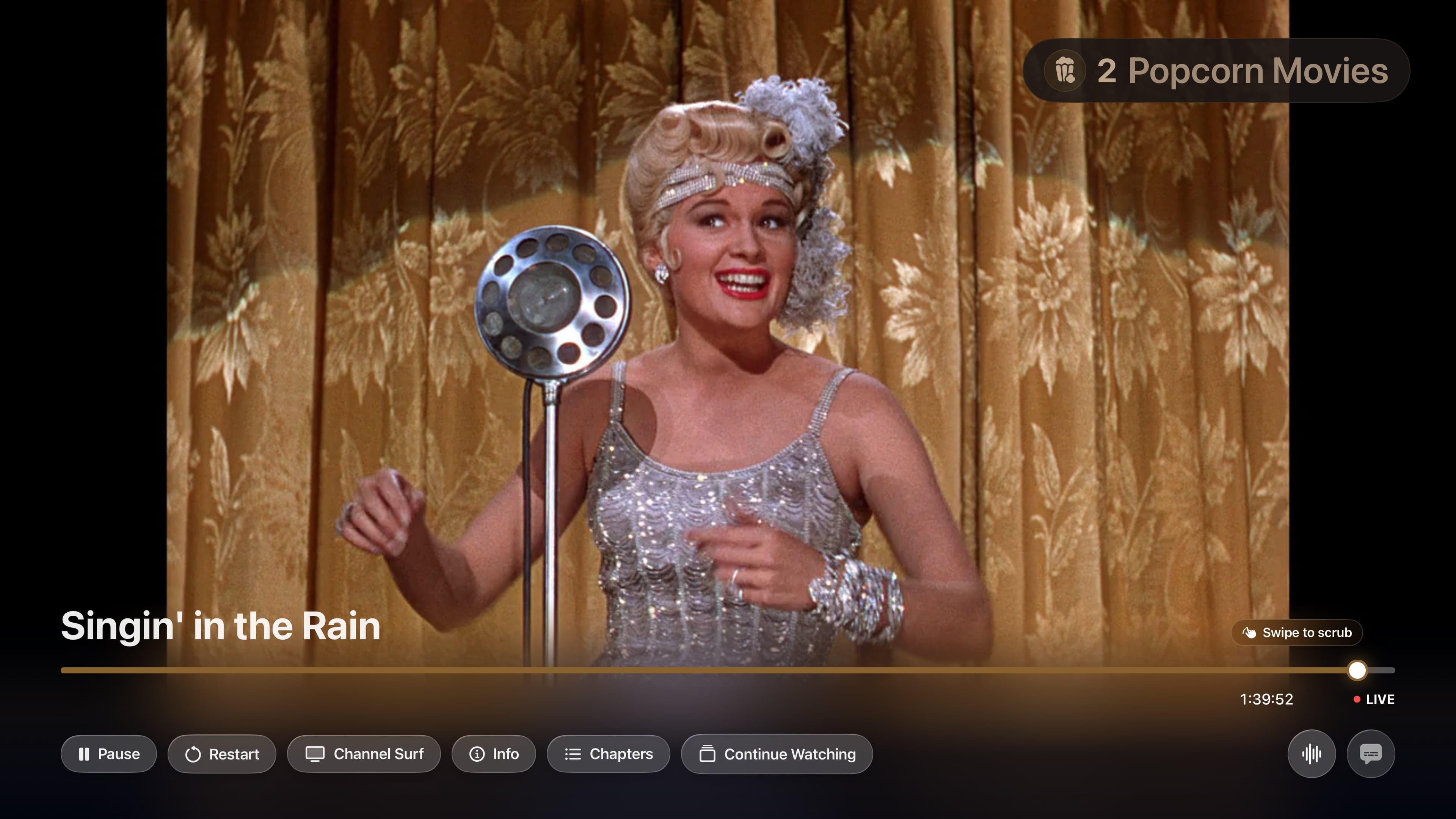
Pause eligible live video or move backward and forward in 15-second steps.
Use the interactive timeline and see Plex BIF preview thumbnails when the server provides them.
Return to the beginning of the current program when history is available, then jump back to the live edge when you are ready.
In the app
Signal 01
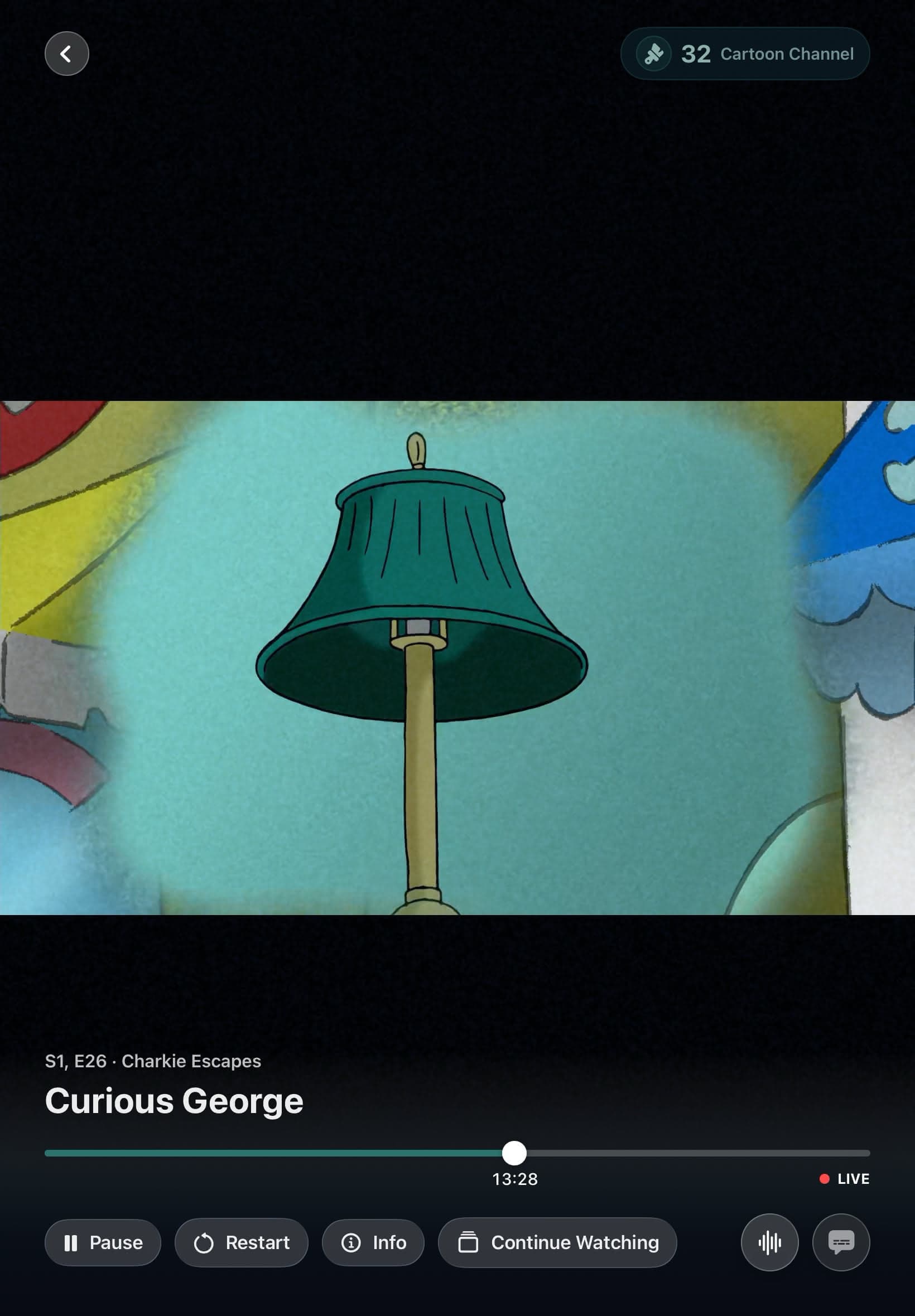
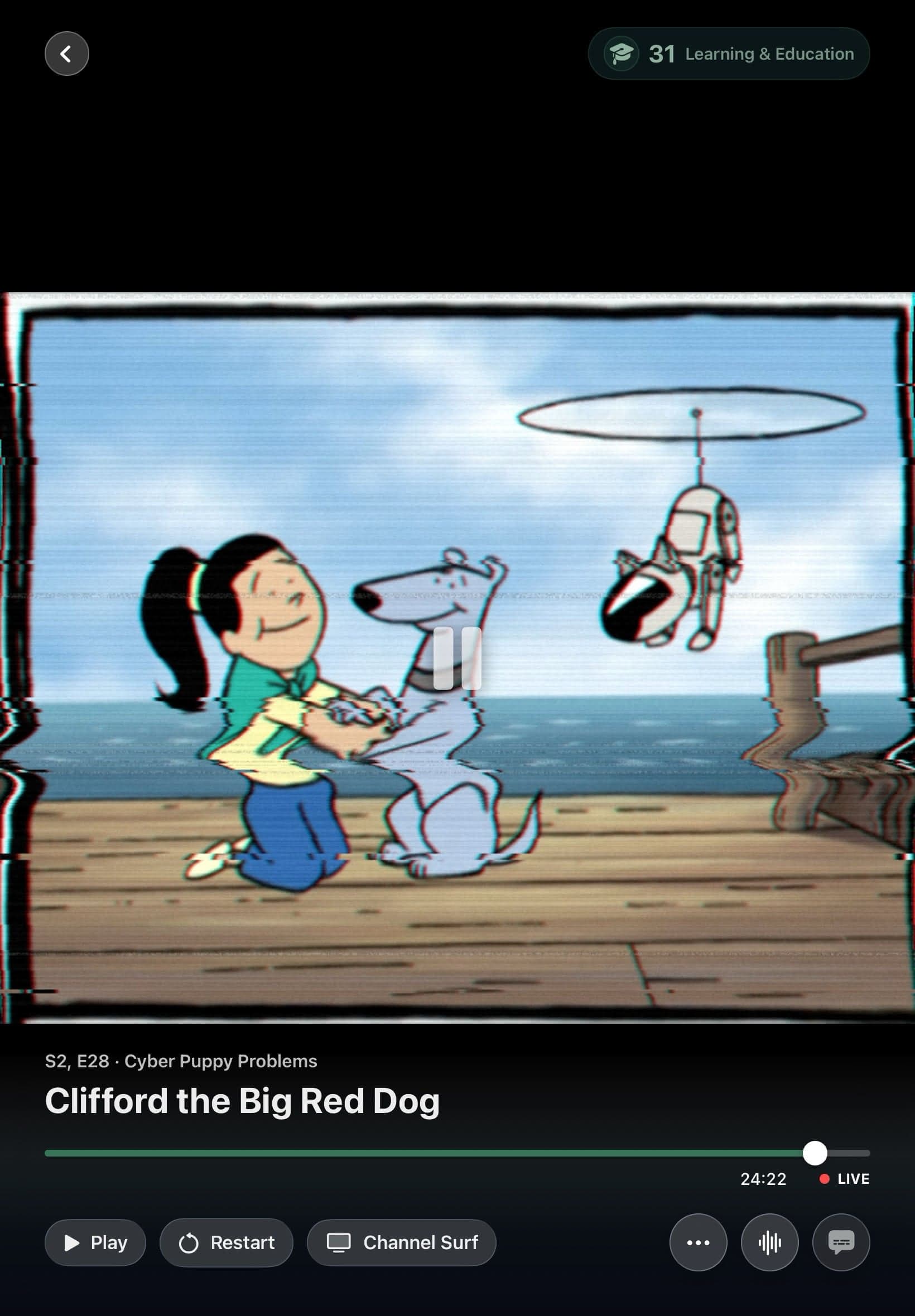
A scheduled channel should keep its sense of time even when you need a minute. DVR Mode tracks the live edge while eligible playback is paused or moved backward, so the controls can always show where you are relative to the channel.
The timeline is interactive on Apple TV, iPhone, and iPad. Plex BIF thumbnails add visual previews when the selected server and title provide them. When they are unavailable, seeking still works without inventing preview images.
Signal 02
Selecting a past program can seek backward when that part of the channel is still available. A future program remains in the guide until its scheduled start instead of playing early.
If playback reaches the end after you have moved within the available history, Bunny Ears TV returns to the guide at the next program boundary. Unavailable actions stay disabled and explain why, so a missing buffer or preview does not look like a broken button.
Good to know
DVR Mode is a Bunny Ears TV+ feature for eligible video channels. Available history depends on the current playback session, and Weather on 20 does not support DVR seeking or Restart.
Quick answers
No. The channel schedule keeps moving. DVR Mode shows your position behind the live edge and lets you return with Go Live.
Preview pictures depend on Plex BIF thumbnails from the selected server and title. Seeking can remain available when thumbnails are not.
No. Weather is generated live and does not support DVR seeking or Restart.
Keep looking
A personal library becomes television when the clock matters. Bunny Ears TV schedules eligible movies, shows, music, custom stations, and utility channels into a guide that is already moving when you arrive.
CHChanging channels should not mean backing out to a wall of posters. Channel Surfer puts a compact mini guide over full-screen playback so you can look around while the current program keeps going.
AUTOA healthy local network should not be punished for what might happen on cellular. Bunny Ears TV keeps verified local Wi-Fi and Ethernet on Direct Play when possible, then uses Plex delivery options when the media or route needs help.
The 26-channel Basic package is free forever. Bunny Ears TV+ adds more channels, more features, and more fun. Download the app to start watching.