Sharing a Plex server with family should not mean handing everyone the administrator password. The cleaner setup gives each person the right Plex access, then lets Bunny Ears TV turn the libraries they can see into a personal channel guide.
That can be a parent watching movies from your server across town, a child using a restricted profile on an iPad, or a teenager leaving a Plex music video channel running on an iPhone. Apple TV is one part of the picture, but it is not the only screen Bunny Ears TV supports.
I built Bunny Ears TV, so this is a firsthand guide to using my app with a shared Plex server. The important boundary is that Plex grants the library access and provides the remote connection. Bunny Ears TV uses the server, libraries, and profiles made available to the signed-in Plex account.
The Short Version
To share a Plex server with family through Bunny Ears TV:
- Give the family member their own Plex account, or choose an appropriate Plex Home profile for a shared household device.
- In Plex, grant access only to the libraries that person should use.
- Enable and test Plex Remote Access if the device will be outside the server owner's network.
- Install Bunny Ears TV on a supported Apple TV, iPhone, or iPad.
- Link the family member's Plex account, choose the shared server and permitted libraries, then let the first guide build finish.
- Leave Video Quality on Auto unless that connection needs a deliberate bitrate limit.
The family member gets a television-style guide built from the media they are allowed to access. They do not receive your Plex password, server administration rights, or a copy of the underlying files.
Share the Plex Library, Not Your Login
For a relative with their own phone, tablet, or television, start with Manage Library Access in Plex. Plex says this kind of server sharing is intended for family and close personal friends.
The server owner can:
- Open Plex Web App and go to Settings > Manage Library Access.
- Select Grant Library Access.
- Enter the family member's Plex username or email address.
- Choose the correct Plex server.
- Share the whole server or select individual libraries.
- Review the available restrictions, then send the invitation.
The recipient can create a free Plex account while accepting the invitation if they do not already have one. Plex documents the current flow in Managing Library Access.
Choose the libraries as if you were handing over shelves, not merely checking boxes. A parent may need Movies and Television. A child might receive a smaller family library. Someone interested in your concert recordings may only need the music video library. Leaving an unrelated library unshared is easier to audit than relying on everyone to ignore it.
This also answers a common version of the question, "How do I share my Plex library with family without sharing my password?" Give each independent viewer a Plex identity and grant access to that identity. Do not reuse the server owner's credentials on a relative's device.
Plex Home or a Separate Plex Account?
Plex Home and ordinary library sharing solve different household problems.
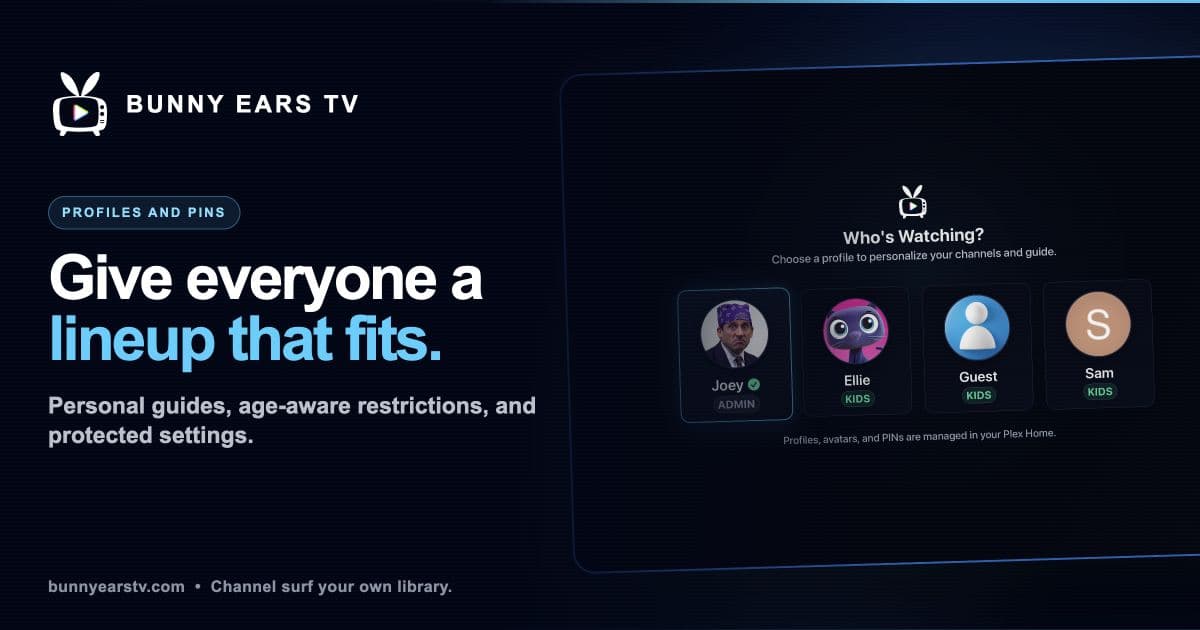
Plex Home is designed for people who live together and often share devices. It adds a Who's Watching-style switcher, Managed Accounts, profile PINs, library choices, and content restrictions. A Managed Account does not have its own email address or direct login. A full Plex account signs in first, then switches to the managed profile.
That model works well on the Apple TV in the family room or an iPad that stays in the house. Bunny Ears TV recognizes Plex Home names and avatars, accepts four-digit profile PINs, and can ask who is watching before it opens the guide.
For an adult relative in another home, their own Plex account with selected library access is usually the cleaner starting point. They can accept the invitation and link their account on their own device without knowing your password. Plex itself describes Plex Home as a feature for people who physically live together.
The choice is not really "family sharing versus profiles." Use a separate account when someone needs an independent sign-in. Use Plex Home profiles when people in one household need quick switching and managed access on shared screens.
Make Sure the Plex Server Is Actually Reachable Remotely
Granting library access does not open a path through the internet. If the family member will watch away from the server owner's network, the server owner must enable Remote Access in Plex and keep the server online.
Remote playback has a few limits that local playback can hide:
- The Plex server's upload speed may be much lower than the viewer's download speed.
- High-bitrate files can exceed the available route even when the connection looks fast in a basic speed test.
- Several relatives watching at once can compete for upload bandwidth and transcoder capacity.
- Plex Relay can provide a fallback route, but it should not be treated as identical to a direct remote connection.
- The server still has to be awake, signed in, and able to reach the media files.
Plex also changed the account requirements for remote personal-video playback. Its requirements for remote playback, last modified April 10, 2026, say that an affected client needs one of the following: a Plex Pass on the server administrator's account, a Plex Pass on the viewer's account, or a Remote Watch Pass on the viewer's account. Plex says an administrator's Plex Pass covers other users streaming video remotely from that server.
Those are Plex rules, and Plex is rolling them out by app and platform. Check the current requirement for the devices your family will actually use. A Bunny Ears TV+ purchase does not replace Plex Pass or Remote Watch Pass.
Before configuring a full guide, test one ordinary movie or episode from the recipient's real network. Turn off Wi-Fi on an iPhone to test cellular, or test from the relative's house. A successful stream on the server owner's sofa only proves the local route.
Set Up Bunny Ears TV on Apple TV, iPhone, or iPad
Bunny Ears TV runs natively on Apple TV, iPhone, and iPad. It currently requires an Apple TV 4K, first generation or newer, with tvOS 26, or an iPhone or iPad running iOS 26 or iPadOS 26.
On the family member's device:
- Install Bunny Ears TV from the App Store.
- Choose Link Plex Account.
- Complete the Plex link using the family member's account, not the server administrator's account.
- Choose a Plex Home profile when that household uses one.
- Select the shared Plex server from the available local, remote, or Relay connections.
- Select only the movie, television, music, and video libraries needed for this guide.
- Let the initial library sync and guide build finish.
- Favorite a few useful channels so the first visit does not begin with another long list to manage.
The initial sync can take longer for a large library or a remote server. Bunny Ears TV reads the metadata and artwork needed to build its guide, but the movies, shows, songs, and music videos remain on the Plex server.
Each Bunny Ears TV setup uses one selected Plex server at a time. If the family member's account can see several servers, confirm the correct server name before troubleshooting a missing library.
How Remote Connections and Automatic Transcoding Work
A remote connection does not mean every file must be transcoded. It also does not mean every original file can travel unchanged.
With Video Quality set to Auto, Bunny Ears TV considers the selected Plex route and the conditions on the Apple device. A compatible file on a healthy connection may use Direct Play. Plex can Direct Stream when the media tracks are usable but the container needs to change. On a remote, Relay, cellular, constrained, hotspot, or demonstrably slow route, Bunny Ears TV can request a capped Plex transcode when Auto has evidence that it is needed.
The Plex server performs that transcode. It can reduce the bitrate or resolution, convert an incompatible track, or prepare a stream the device and connection can handle. Plex's Direct Play, Direct Stream, and transcoding overview explains why the file, device, subtitles, quality choice, and network all affect the result.
This is what makes a shared Bunny Ears TV setup flexible. The Apple TV on Ethernet can keep a high-quality home profile. An iPhone can use separate Wi-Fi, Cellular, and 5G Cellular settings. A cellular-capable iPad gets those mobile profiles too. Lowering the mobile limit does not quietly lower the Apple TV's living-room quality because the connection choices are device-local.
Auto is the sensible first setting for a relative who does not want to manage codecs and bitrates. There are still honest limits:
- A server that cannot keep up with a required transcode may buffer or fail.
- A subtitle that must be burned into the picture can turn an otherwise compatible file into a full video transcode.
- Original Quality can overwhelm a weak remote route.
- An explicit bitrate choice remains explicit rather than being silently ignored.
If playback stalls, check the active route and the Plex Dashboard before changing the entire library. Plex's bandwidth and transcoding limits guide is a useful reference for server upload limits and simultaneous transcodes. The Bunny Ears TV playback page shows the quality controls available on each Apple device.
How to Share a Plex Music Video Channel With Family
A shared server can be more than a remote movie shelf. If your Plex server contains music videos, Bunny Ears TV can turn them into Music Video Mixtapes on channel 19.
This gives the family a continuous Plex music video channel instead of asking someone to open a folder and choose one clip at a time. Channel 19 can use Plex video libraries, collections, and playlists that are visible to the signed-in account. It adds artist spacing, optional Song IDs, Fresh Drop rotation for recent additions, Artist Spotlight sets, and source mixing.
To share a Plex music video library with a family member:
- Organize the music videos in Plex and confirm that the recipient's account can play them.
- Share the video library that contains those files.
- Link the recipient's Plex account in Bunny Ears TV and select that library during setup.
- Open Settings > Music Video Mixtapes > Video Sources.
- Add the shared library or a visible collection to channel 19.
Plex playlists can be account-specific. If the exact Plex music video playlist you use as the server owner does not appear for the recipient, build the station from a shared video library or server collection that their account can see. The source permission comes first.
Channel 19 is included in Bunny Ears TV's always-free 26-channel Basic package. It does not provide, download, or license music videos. It schedules compatible videos already available through the selected Plex server.
This is also not an Apple TV-only music video channel. Family members can watch channel 19 in Bunny Ears TV on iPhone and iPad. When the separate Music Video Channel background-audio policy allows it, the audio can continue after the app leaves the foreground and publish the current program to the device's Now Playing surfaces.
For a complete walkthrough, read How to Create a Plex Music Video Channel or see the Music Video Mixtapes feature page.
Build Safer Guides for Kids and Teens
Family sharing becomes more useful when a six-year-old, a teenager, and an adult do not all inherit the same guide.
Start with the Plex boundary. Share only the libraries the person should see, then apply the Plex restriction profile or rating and label rules that fit the account. Plex documents its current options in Restrictions on Library Access.
Bunny Ears TV adds another guide layer for Plex Home profiles. An adult can choose Little Kids, Older Kids, or Teens, decide how unrated content should be handled, and separately show or hide music channels. The app derives the permitted channel and program view for the active profile instead of showing the adult guide unchanged.
Managed profiles cannot change household-wide server, library, package, custom-channel, Ad Bumper, purchase, or sign-out settings. Adult and administrator profiles can use a Plex Home PIN to make casual switching harder.
None of those controls can repair bad metadata. An unrated home video, a mismatched movie, or a music video without a useful rating still needs adult review. For a younger viewer, a curated family library or collection is a safer source for a custom Plex music video station than an unrestricted archive. Test the finished guide while signed into the exact child or teen profile before handing over the device.
The profiles and parental controls page shows how profile filtering and managed settings work in Bunny Ears TV.
Apple Family Sharing Is a Different Layer
Plex library access, Plex Home, and Apple Family Sharing sound related, but they do different jobs.
Current monthly, annual, and lifetime Bunny Ears TV+ products support Apple Family Sharing where Apple's purchase-sharing rules and regional availability allow it. A family member in the same Apple Family group may need to open Bunny Ears TV and use Restore Purchases before the entitlement appears.
That shares an eligible Bunny Ears TV+ purchase. It does not:
- Grant access to a Plex server
- Add someone to Plex Home
- Share the server owner's Plex password
- Turn on Plex Remote Access
- Satisfy Plex's remote-playback account requirements
- Copy every device-local quality or profile choice
Family members can use the 26-channel Basic package without buying Bunny Ears TV+, which makes it practical to test the Plex share and remote route before sorting out a paid entitlement.
A Handoff Checklist That Catches Real Problems
Before giving the remote to a parent or putting the iPad in a child's backpack, check the complete path:
- The family member uses the intended Plex account or Plex Home profile.
- That identity sees only the libraries and items it should see.
- The shared server appears outside the owner's network.
- A typical movie, episode, and music video can play on the real remote connection.
- Auto or the selected quality limit fits the available upload and mobile data plan.
- The Bunny Ears TV guide has completed its first sync.
- Child and teen profiles have been reviewed from the viewer's side.
- Adult profiles have appropriate PIN protection on shared devices.
- The family member knows that the home server must stay online.
Once those pieces are in place, the remote experience is pleasantly ordinary: open Bunny Ears TV, see what is already on, and start watching. The work belongs in the permissions and connection setup, not in a password sent through a family group chat.
Common Questions About Plex Family Sharing
Does Bunny Ears TV share my Plex server for me?
No. The server owner grants library access through Plex and enables Plex Remote Access when needed. Bunny Ears TV uses the servers and libraries available to the linked Plex account.
Can family members watch my Plex server on iPhone or iPad?
Yes. Bunny Ears TV runs natively on supported iPhone and iPad devices, not just Apple TV. It has touch controls and separate Wi-Fi, Cellular, and 5G Cellular quality profiles. The Plex account still needs permission to the server and a working route.
Does Plex automatically transcode remote streams?
It can. Bunny Ears TV supports Direct Play, Direct Stream, and Plex-provided adaptive transcodes. With Auto selected, the app can request a bounded transcode when the remote or mobile route needs one. The Plex server must have enough capacity to produce it.
Can I share a Plex music video channel with my family?
Yes. Share the Plex video library first, then select a visible library, collection, or playlist as a Music Video Mixtapes source in Bunny Ears TV. Each family member can watch channel 19 on Apple TV, iPhone, or iPad.
Is Plex family sharing free?
Basic Plex accounts can receive selected library access, and Bunny Ears TV includes 26 always-free channels. Remote personal-video playback can have separate Plex Pass or Remote Watch Pass requirements depending on the server owner, viewer, app, and platform. Bunny Ears TV+ is a separate optional purchase for the wider lineup and premium features.